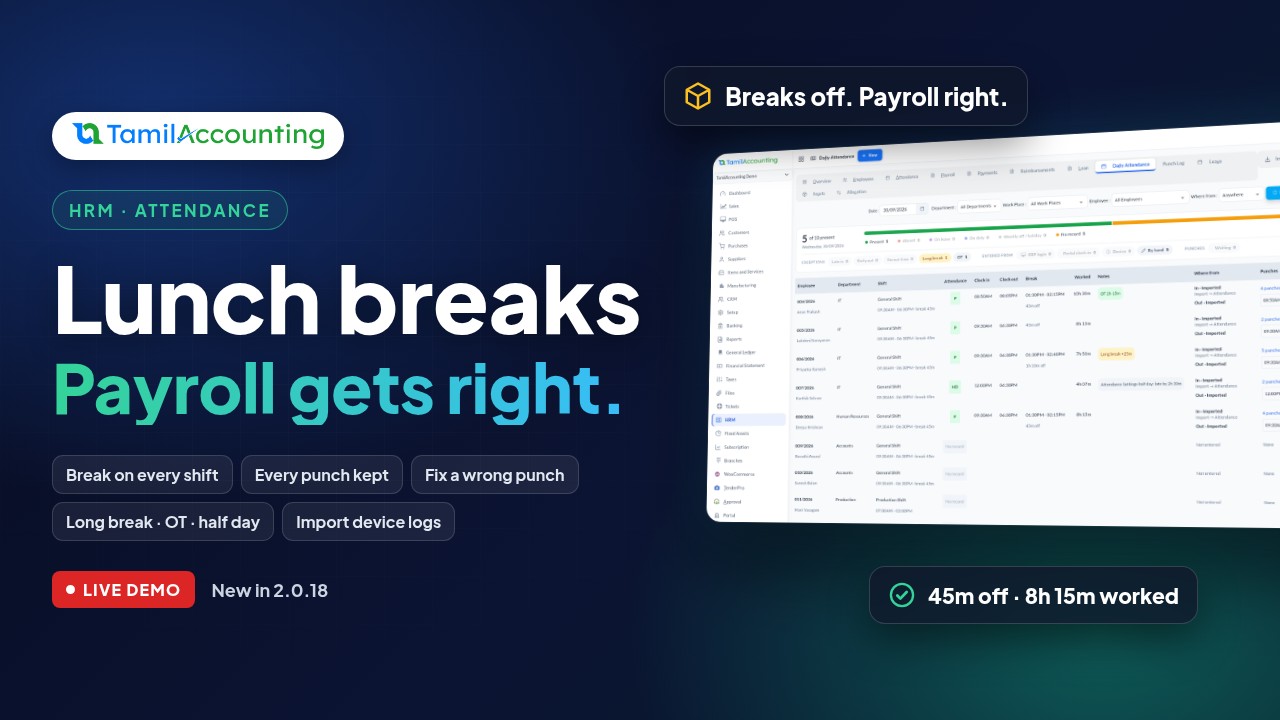
Lunch is part of every working day, but most attendance systems treat it as an afterthought: either the hour quietly counts as work, or someone has to take it off by hand at the end of the month. TamilAccounting now gives every shift a proper lunch break, keeps every punch your staff make, and builds each day from those punches, so the hours your payroll pays are the hours your people actually worked.
The problem with lunch breaks
Ask any HR team how they handle the lunch hour and you will hear one of three answers:
- "We ignore it." A 9 to 6 day counts as nine hours, even though everyone takes 45 minutes off. Overtime and hourly pay are calculated on hours nobody worked.
- "We take it off by hand." Someone goes through the register every month and subtracts the break from each day. It is slow, and it is never quite consistent.
- "The machine sorts it out." A biometric terminal records four touches a day: in, out for lunch, back from lunch, and home. But most software keeps only the first and the last, so the lunch touches are simply thrown away, and so is any long lunch.
There is a second, quieter problem. If you take the break off the hours worked but not off the hours a day should have, every employee looks short by 45 minutes every single day, and payroll deducts it as loss of pay.
What is new
- A lunch break on every shift: how many minutes, at a set time or any time in the day, paid or unpaid.
- Every punch is kept: from the biometric terminal, the employee app, the ERP login and the attendance import. Nothing is overwritten.
- Each day is built from its punches: the first punch is the clock-in, the last is the clock-out, and the lunch punches become the break.
- The break comes off both sides: the hours worked and the hours a day should have, so payroll stays fair.
- Punch Log: HR sees every punch beside the day it built, and can ignore a wrong touch, add a missed punch, or rebuild a day.
- Daily Attendance shows the break, overtime, long breaks and anyone who left during lunch.
- Attendance Settings decide how a punched break counts, when a day becomes a half day or absent, and which overtime is paid, for every day, however it was punched.
- Import device logs from your terminal's software in one upload.
How it works
1. The break belongs to the shift
Open HRM → Settings → Shifts and edit a shift. Four new fields describe its lunch break:
| Field | What it means |
|---|---|
| Break Minutes | How long the break is. 0 means the shift has no break, and nothing changes for it. |
| Break at a Set Time | Ticked: the break is taken at a fixed time, for example 1:30 PM. Not ticked: it can be taken any time in the day. |
| Break Starts At | The time a set-time break starts. |
| Paid Break | Ticked: the break is paid and nothing comes off the hours. Not ticked: the break comes off the day's hours. |
The shift list then shows the break at a glance, for example "45 min at 01:30 PM, unpaid".
2. Every punch is kept, and the day is built from them
Each punch is stored exactly as it came, with where it came from: the terminal's name, or the phone and its location. The day is then worked out from all of that day's punches:
- The first punch is the clock-in, the last punch is the clock-out.
- Punches marked as a break (from a terminal's Break keys, or the employee app) are the break.
- From a terminal that cannot tell one touch from another, the second and third of four or more touches are the lunch break.
- A second read of the same finger within a minute is kept as a repeat read, and does not count.
- A punch at 5:30 in the morning on a night shift counts for the night that started the evening before.
3. How much of the break comes off
| Situation | What comes off the day |
|---|---|
| The break was punched | By default, the longer of the break taken and the shift's break: coming back early does not earn pay for the break, staying out longer costs the extra. You can change this per department (see below). |
| No break punched, break at a set time | The part of the break that falls inside the day. With a 1:30 PM lunch, someone who leaves at 1:50 PM loses 20 minutes; someone who arrives at 2:30 PM loses nothing. |
| No break punched, break any time | The whole break, once the day is longer than half the shift. A half day keeps its hours. |
| Clocked out during the break | The day ends at the break. Both the lunch and the time worked are recorded. |
| A paid break | Nothing, except time taken beyond the allowed break. |
| A shift with no break | Nothing, even if a break was punched. It is still shown, so you can see it. |
4. Attendance Settings decide, for every day
In HRM → Settings → Attendance Settings, each department now has a Punched Break Deduction:
- The longer of the break taken and the shift's break (the default);
- The break taken, minute for minute;
- The shift's break, whatever was punched: the break punches are only shown.
The rules you already use there now apply to every day, however it was punched: mark a half day if late by a set time or leaving early by a set time, a half day or absent when the time worked is too short, and whether early arrival and late leaving count as overtime.
5. HR checks the punches, and corrects them
HRM → Punch Log lists every punch beside the day it built. From Daily Attendance, click a row's punches to open that day. HR can:
- Ignore a wrong punch: it stays on record, struck through, and the day is rebuilt without it.
- Count again a punch that was ignored by mistake.
- Add a missed punch, with a reason: the day is rebuilt with it.
- Rebuild a day whose times were changed by hand, back from its punches.
Every correction records who made it and when. A day entered by hand, a leave day, and any month whose payroll is already processed are never changed by new punches.
How to turn it on
- Go to HRM → Settings → Shifts, edit each shift and enter its Break Minutes, whether it is at a set time, and whether it is paid.
- Go to HRM → Settings → Attendance Settings, edit each department and choose the Punched Break Deduction. Review the half-day, absent and overtime options.
- Bring the punches in: from your biometric terminals, the employee app, or Import Export → Attendance with your terminal's log.
- Check the day in HRM → Daily Attendance, and correct anything in HRM → Punch Log.
Set the break at the start of a payroll month, so the whole month is measured the same way.
Step by step: a day in the life of HR
- Morning: open Daily Attendance. The cards show who is present, late, on leave, on a long break or working overtime.
- Find anything odd: click the Long break or OT pill to filter the list, or click a row's punches to see exactly what the terminal recorded.
- Correct it: ignore a stray touch, or add the punch someone forgot. The day is rebuilt on the spot.
- Month end: process payroll as usual. Worked hours, overtime, half days and loss of pay all come from the same days you checked.
Worked example 1: one day, five employees
The General Shift runs 9:30 AM to 6:30 PM with a 45-minute unpaid lunch at 1:30 PM, so a full day is 8 h 15 m of paid work. The department marks a half day when someone is two hours late. Here is one day, imported from the terminal's log:
| Employee | Punches | In | Out | Break | Comes off | Worked | What happened |
|---|---|---|---|---|---|---|---|
| Lakshmi | 9:30, 18:30 | 9:30 AM | 6:30 PM | not punched | 45 m | 8 h 15 m | The set-time lunch falls inside her day, so it comes off on its own. |
| Arun | 8:50, 13:30, 14:15, 20:05 | 8:50 AM | 8:05 PM | 1:30–2:15 PM | 45 m | 10 h 30 m | Overtime: 40 m early and 1 h 35 m late. |
| Priyanka | 9:30, | 9:30 AM | 6:30 PM | 1:30–2:40 PM | 1 h 10 m | 7 h 50 m | A stray touch at 10:45 made her "lunch" 10:45 to 1:30. HR ignores it; the real lunch is 70 minutes, a long break by 25. |
| Karthik | 12:00, 18:30 | 12:00 PM | 6:30 PM | — | — | 4 h 07 m | Late by 2 h 30 m: a half day by the department's rule (half of 8 h 15 m). |
| Deepa | 9:30, 13:30, 14:15, 18:30 added by HR | 9:30 AM | 6:30 PM | 1:30–2:15 PM | 45 m | 8 h 15 m | She forgot to punch out, so her day ended at 2:15 PM. HR adds the 6:30 PM punch and the day is rebuilt. |
Worked example 2: why the break must come off both sides
Meena earns a gross salary of 30,000 a month, on the same 9:30 to 6:30 shift with a 45-minute unpaid lunch. In a 30-day month with four Sundays off she works 25 days and is absent one day. Payroll compares the hours worked with the hours the month should have:
| Break off both sides (now) | Break off worked hours only | |
|---|---|---|
| A full day | 8 h 15 m | 9 h 00 m |
| Hours the month should have (30 days) | 247 h 30 m | 270 h 00 m |
| Weekly offs (4 days) | 33 h 00 m | 36 h 00 m |
| Hours worked (25 days × 8 h 15 m) | 206 h 15 m | 206 h 15 m |
| Short by | 8 h 15 m (one day) | 27 h 45 m |
| Loss of pay | 1,000.00 (one day of 30,000 ÷ 30) | 3,083.33, more than three days |
Taking the break off only the hours worked would have charged Meena for 45 minutes of every day she came to work. TamilAccounting takes it off both sides, so one absent day costs exactly one day.
Worked example 3: overtime on the paid day
Overtime is paid per hour of a paid day. With a basic of 15,000, 26 working days and an 8 h 15 m paid day, one hour is worth 15,000 ÷ 26 ÷ 8.25 = 69.93. One and a half hours of overtime at double rate is 1.5 × 69.93 × 2 = 209.79. Whether early arrival, late leaving or both count as overtime is set per department in Attendance Settings.
Frequently asked questions
Do I have to set a break on every shift?
No. A shift with Break Minutes 0 works exactly as before: nothing comes off, even if someone punches out for lunch. The lunch punches are still shown, so you can see them.
Our staff take lunch whenever they are free. Does that work?
Yes. Leave "Break at a Set Time" unticked. If they punch the break, it is taken from the punches; if they don't, the whole break comes off once the day is longer than half the shift.
What if the lunch is paid?
Tick Paid Break. Nothing comes off, except time taken beyond the allowed break if the break was punched.
Can employees mark the break from the mobile app?
The ERP already accepts break punches from the employee app, with the phone's location. The Start break and End break buttons arrive with the next app update. Until then, the clock-in and clock-out from the app work as before.
Our terminals have In, Out and Break keys. Can we use them?
Yes. Switch on "Use the terminal's In / Out / Break keys" in the device settings, and each punch counts as the key says. Leave it off if your staff never press the keys: the day is then worked out from the order of the touches.
Someone forgot to punch out. What do I do?
Open the day in the Punch Log and add the missed punch with a reason. The day is rebuilt immediately.
HR fixed a day by hand. Will the next punch undo it?
No. A day changed by hand stays as HR left it, and its punches are not applied. If you want the punches back, use Rebuild on that day.
Can I import punches from my terminal's software?
Yes. In Import Export → Attendance, upload an Excel or CSV file with the employee reference and the punch time, or the terminal's own log file as it is. Rows that cannot be imported come back in a file with the reason.
Will it change months we have already paid?
No. A month whose payroll is processed is locked: new punches are recorded but the days are not changed.
Lunch breaks, done properly
With a break on every shift, every punch kept, and each day built from those punches, your attendance finally matches the day your people actually worked, and your payroll follows it. Set the break on your shifts today, and let TamilAccounting do the rest.
Short on time? The highlights in under a minute: Lunch breaks payroll gets right.