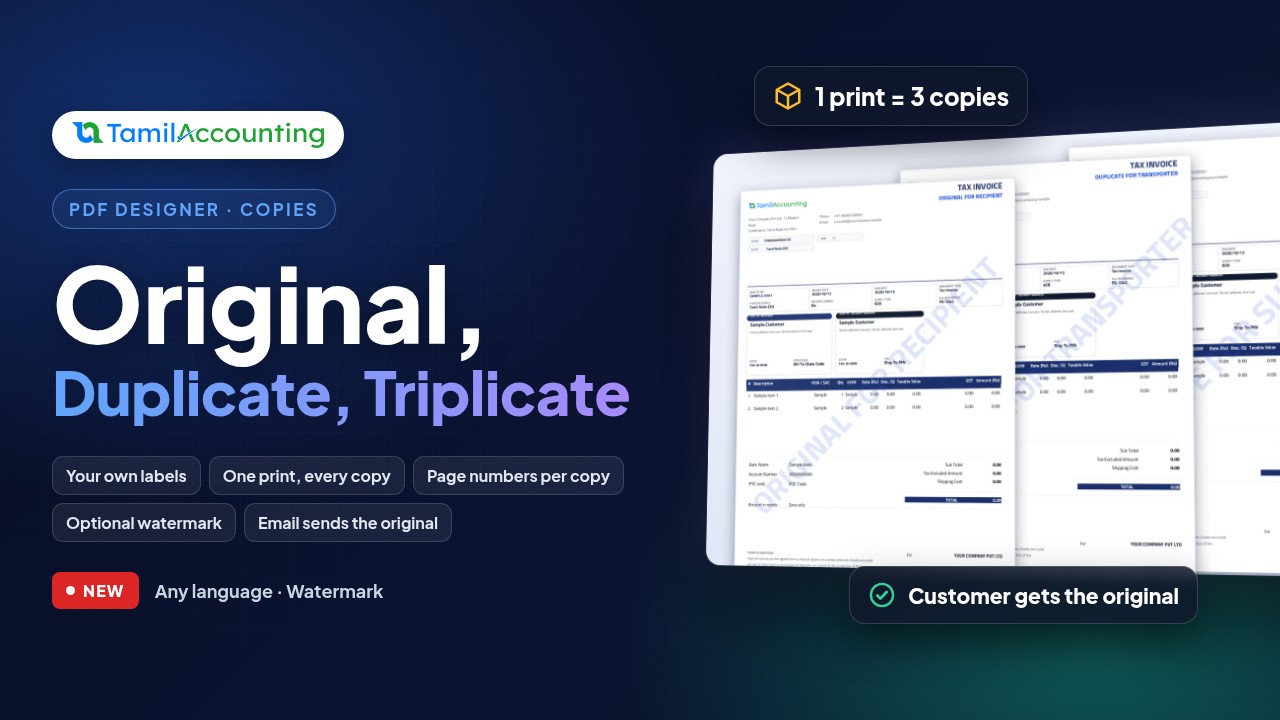
Most businesses print more than one copy of an invoice: one for the customer, one for the file, sometimes one for the driver. Until now each copy meant printing again and then writing “DUPLICATE” across it by hand, or keeping a second layout and remembering to switch to it. TamilAccounting now prints every copy in one go: Original, Duplicate, Customer Copy, or whatever names you choose. Each copy carries its own label, and you can add a faded watermark if you want one.
Why extra copies were a chore
- Printing twice meant two identical sheets and a pen to tell them apart.
- A second layout just to say “Office Copy” doubled the work whenever the design changed, and somebody always printed the wrong one.
- Emailing a PDF risked sending the customer the copy marked for your own records.
How it works
- One print, every copy. Switch on Print multiple copies in the layout and a single print produces the whole set, one copy after another in the same PDF.
- Your labels, in your words. Type one label per copy: Original and Copy, Customer Copy and Office Copy, or the GST wording ORIGINAL FOR RECIPIENT. Labels can be in any language your layout’s font can print, Arabic included.
- The label goes where you put it. Add the Copy Label component to the layout and drag it anywhere: under the title, beside the invoice number, in the footer. Style it like any other text.
- An optional watermark. Tick Print the label as a watermark and each copy carries its label faded and diagonally across every page. You choose the size, colour, angle and how faint it is.
- Page numbers per copy. If your layout prints “Page 1 of 2”, each copy counts its own pages, so the duplicate starts again at page 1.
- The customer receives the original. A PDF emailed from TamilAccounting, or opened from a share link, carries only the first copy. Your printer gets the full set.
Turn it on
- Open Reports → Designer and choose the document, for example Sales Invoice, and the layout your company prints.
- Open the Page setup tab and scroll to Copies.
- Tick Print multiple copies. The list starts with Original and Copy.
- Rename the labels, press + Add copy for a third or fourth copy, or press × to remove one. Copies print in the order of the list.
- To add a watermark, tick Print the label as a watermark and set its size, opacity, angle and colour. The page beside you redraws as you change them.
- From Components, add Copy Label and drag it where each copy should name itself.
- Leave Email and share links send the first copy only ticked, unless your customers should receive every copy.
Changes are saved as you make them. If you are working on a copy of your layout, press Make default when it is ready to print for everyone. New to the Designer? Start with Design your invoice by dragging it.
Worked example 1: a GST invoice for goods, in triplicate
Under GST, a supplier of goods issues the tax invoice in triplicate, and each copy is marked for the person who keeps it. Set the labels in this order:
| Copy | Label | Who keeps it |
|---|---|---|
| 1 | ORIGINAL FOR RECIPIENT | The buyer |
| 2 | DUPLICATE FOR TRANSPORTER | Travels with the goods |
| 3 | TRIPLICATE FOR SUPPLIER | Your own file |
Invoice INV-0042 has 30 lines and fills two pages. One print now gives a six-page PDF:
| PDF page | Copy label | Page number printed | Watermark |
|---|---|---|---|
| 1 | ORIGINAL FOR RECIPIENT | Page 1 of 2 | ORIGINAL FOR RECIPIENT |
| 2 | ORIGINAL FOR RECIPIENT | Page 2 of 2 | ORIGINAL FOR RECIPIENT |
| 3 | DUPLICATE FOR TRANSPORTER | Page 1 of 2 | DUPLICATE FOR TRANSPORTER |
| 4 | DUPLICATE FOR TRANSPORTER | Page 2 of 2 | DUPLICATE FOR TRANSPORTER |
| 5 | TRIPLICATE FOR SUPPLIER | Page 1 of 2 | TRIPLICATE FOR SUPPLIER |
| 6 | TRIPLICATE FOR SUPPLIER | Page 2 of 2 | TRIPLICATE FOR SUPPLIER |
Every copy is the same invoice: same number, same date, same lines, same total. Only the label changes. Nothing is posted twice and the invoice number is used once; copies are purely a print setting.
The ready-made GST e-Invoice layout already carries these three labels. Tick Print multiple copies to print all three. If you issue e-invoices, check with your tax adviser how many printed copies you still need.
Worked example 2: who receives which copy
The same invoice, INV-0042, with the three labels above:
| How the invoice leaves TamilAccounting | Copies in the PDF | Pages |
|---|---|---|
| Printed from the invoice or the Reports screen | Original, Duplicate, Triplicate | 6 |
| Emailed to the customer | Original only | 2 |
| Opened by the customer from a share link | Original only | 2 |
| Emailed, with Email and share links send the first copy only unticked | Original, Duplicate, Triplicate | 6 |
Worked example 3: printing a batch
Printing invoices INV-0101 to INV-0103 together, with the labels Customer Copy and Office Copy, keeps each invoice’s set together, so the pile comes off the printer ready to split:
| Order in the PDF | Invoice | Copy |
|---|---|---|
| 1 | INV-0101 | Customer Copy |
| 2 | INV-0101 | Office Copy |
| 3 | INV-0102 | Customer Copy |
| 4 | INV-0102 | Office Copy |
| 5 | INV-0103 | Customer Copy |
| 6 | INV-0103 | Office Copy |
Label sets businesses use
| Situation | Labels, in print order |
|---|---|
| GST tax invoice for goods | ORIGINAL FOR RECIPIENT · DUPLICATE FOR TRANSPORTER · TRIPLICATE FOR SUPPLIER |
| GST tax invoice for services | ORIGINAL FOR RECIPIENT · DUPLICATE FOR SUPPLIER |
| Customer and office | Customer Copy · Office Copy |
| Delivery note | Customer Copy · Driver Copy · Store Copy |
| Purchase order | Supplier Copy · Accounts Copy |
| Two languages | Original · الأصل, then Copy · نسخة |
Long invoices: “Continued on next page”
When an invoice runs to a second page, the customer should know straight away that there is more, and a loose second page should still say which invoice it belongs to. Two components in the Designer take care of both:
- Continued on next page prints under the last row of every page the items carry over from. It also prints when the items fit but the totals have to move to the next page.
- Continued from previous page prints at the top of each page the items carry on to, just above the rows. Use it to repeat the invoice number on pages that do not repeat the full header.
Neither ever prints on a one-page invoice, and room is kept for them, so they never sit on top of an item line or the totals. The ready-made Sales Invoice layouts already include Continued on next page. If your company uses its own copy of a layout, add the component from Components and drag it where you want it.
The text is yours to change, and it can include the page numbers and the invoice number:
| You type | It prints |
|---|---|
| {page} | This page’s number |
| {next} | The next page’s number |
| {prev} | The previous page’s number |
| {total} | How many pages the invoice has |
| {number} | The invoice number |
Invoice INV-0042 has 60 lines and takes three pages. With “Continued on page {next} of {total}…” at the bottom and “{number} · continued from page {prev} of {total}” at the top, it prints:
| Page | Top of the page | Bottom of the page |
|---|---|---|
| 1 | The full invoice header | Continued on page 2 of 3… |
| 2 | INV-0042 · continued from page 1 of 3 | Continued on page 3 of 3… |
| 3 | INV-0042 · continued from page 2 of 3 | The totals, nothing more |
With copies switched on, each copy counts its own pages, so the duplicate also reads “page 1 of 3” to “page 3 of 3”.
Which documents can print copies
Every document you lay out in the Designer and print through it: Sales Invoice, Quotation, Sales Order, Delivery, Proforma Invoice and Customer Credit Note; Purchase Order, GRN, Supplier Invoice, Supplier Debit Note, Remittance and Expense; Bank Payment, Bank Deposit, Bank Transfer and Journal Entry; Inventory Transfer, Adjustment and Disposal; Job Work Challan and Employee Reimbursement. The Copies section appears in Page setup only for documents that support it. Each layout keeps its own setting, so your invoice can print in triplicate while your quotation prints once.
Frequently asked questions
Do I need a separate layout for each copy?
No. One layout prints every copy. Change the design once and every copy follows.
What happens when Print multiple copies is off?
The document prints once, and the Copy Label shows the first label in the list. A layout that always says “ORIGINAL FOR RECIPIENT” keeps saying it.
Will the watermark make amounts hard to read?
It starts very faint: 12% opacity, light grey, at 45 degrees. Raise or lower the opacity and size until it suits your paper and printer. A long label is set smaller automatically so it never runs off the page.
Can a label be in Arabic or another language?
Yes, as long as your layout’s font has those letters. If it does not, the Designer warns you as soon as you enter the label, before anything is printed. Pick a font that covers your language under Page setup.
My company already has its own GST e-Invoice layout with “ORIGINAL FOR RECIPIENT” typed in. What do I change?
Delete that fixed text, add the Copy Label component in its place, then tick Print multiple copies and type your three labels.
Will a short invoice say “Continued”?
No. The notes print only where the items or the totals carry on to another page. A one-page invoice prints without them.
Can the continued note be in my language?
Yes. Click it in the Designer and type the wording you want, in any language your layout’s font can print, together with any of the page and number placeholders.
Can I print only the duplicate?
Each print produces the full set. To hand someone a single copy, print just those pages from your PDF viewer.