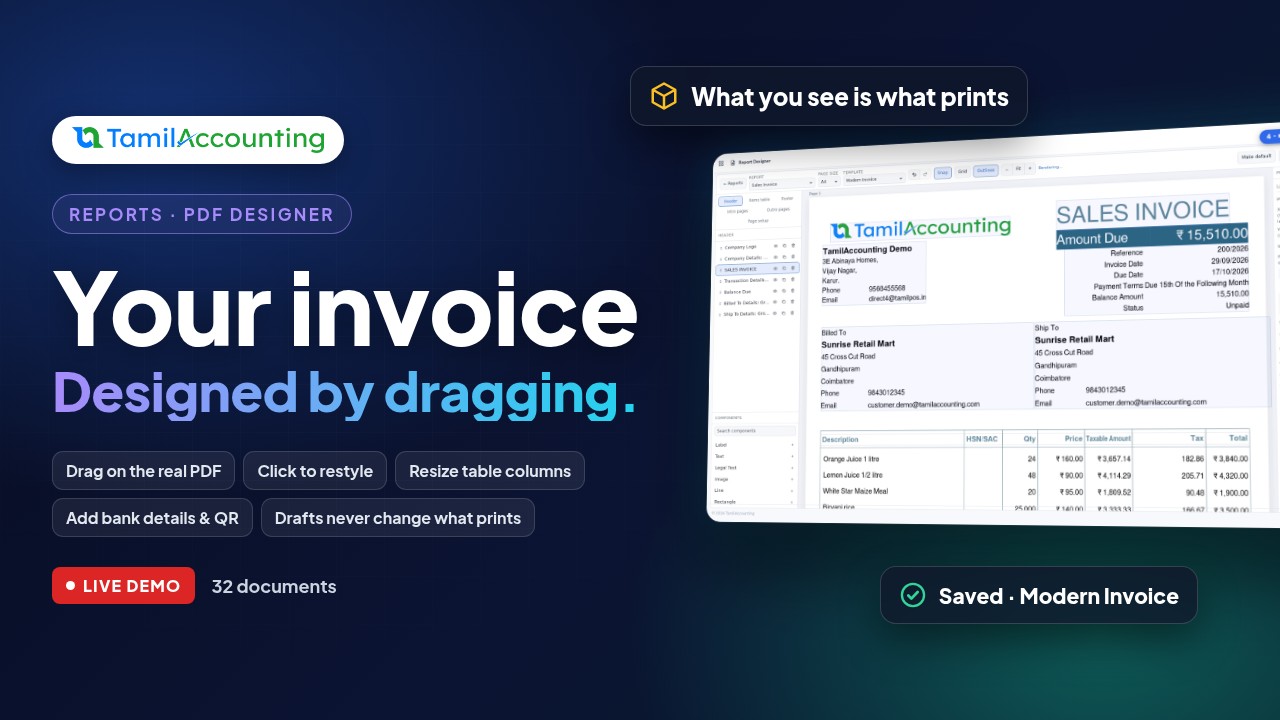
Your invoice is the document your customers see more than any other, so it should look like your business: your logo where you want it, your colours, the details your customers ask for. TamilAccounting's new Designer lets you shape it by dragging it, right on the real PDF, and a new design never touches what you print until you say so.
Why a new layout used to take an afternoon
Print layouts were edited as a list of fields with their positions typed in as numbers. Moving the logo meant guessing an x, a y and a width, saving, opening the PDF to look, and trying again. It worked, but only for someone patient enough to repeat that loop until things lined up.
How the Designer works
- You design on the real document. The Designer opens on your latest invoice, printed as a PDF, with an outline on every field. What you see is exactly what prints, because it is the print.
- Drag, resize, snap. Drag a field to move it, pull a corner to resize it, and it snaps to the edges of the fields around it so everything lines up.
- Point at anything. Click a field on the page and its settings open beside it: position and size, alignment, bold, italic and underline, font size, and the text, fill and border colours. Fields in the footer or on another page are just as clickable; the Designer takes you there.
- Fine control from the keyboard. Arrow keys nudge the selected field by one point, Shift and an arrow by ten. On a column of the items table, the arrows change its width.
- Nothing is final by accident. Every change is saved as you go and every step can be undone. Work on a copy with Save as; it is not what your company prints until you press Make default.
A worked example: a modern invoice
- Open Reports → Designer. Choose the report Sales Invoice and the page size.
- Press Save as and name the copy Modern Invoice. Leave make it the default off, so customers keep receiving the current layout while you work.
- Drag the logo to where you want it and pull its corner to make it bigger.
- Click the document title: a larger size, bold, and your brand colour.
- Drag the customer's Billed To block beside your own company details.
- On the Items table tab, drag a column divider to give the description more room, and hide a column you do not need with the eye icon.
- From Components, add a Label, type a thank-you note, make it italic in your brand colour, and drag it under the grand total. Bank details, QR codes, signatures and the components your country needs, such as its tax panels, come from the same list.
- In Page setup, choose the font and margins, the heading colour, and row stripes for the items table. If a font cannot print your currency symbol, the Designer says so beside the font list.
- Turn Outlines off to see exactly the page that prints, then press Make default. From now on, every invoice prints with the new design.
What you can change
| Part of the page | What you can do |
|---|---|
| Header | Move and resize the logo, company details, document title and number, the customer's billing and shipping blocks, dates and references. |
| Items table | Resize columns by dragging, hide or show columns, rename headings, align and style each column. |
| Footer | Place totals, bank details, amount in words, terms, signatures, page numbers, barcodes and QR codes. |
| Extra pages | Add a cover page before the document or a terms page after it. |
| Page setup | Orientation, font and size, line height, margins, a header that repeats on every page, table lines, heading and row colours. |
Every document you print
The same Designer shapes thirty-two documents, not only invoices: quotations, estimates and proposals, sales orders, delivery notes, receipts and credit notes, customer balance letters, purchase orders, goods receipts, supplier invoices and debit notes, remittances, expenses, work orders and job-work challans, bank payments, deposits and transfers, journal entries, employee payments and reimbursements, and payslips.
Built to be safe
- A draft never changes what you print. Looking at a design, or working on one, leaves your company's invoices exactly as they were until you press Make default.
- The standard layout is always there. The built-in template cannot be deleted, and if you delete a design that was in use, your company falls back to it.
- Copy a design to another company. Save as can place the copy in another of your companies, without making it the default there unless you ask.
- No invoices yet? Design anyway. A new company gets a sample document to design on, so the layout is ready before the first invoice.
- The classic editor is still there for anyone who prefers typing positions.
Frequently asked questions
Will my existing invoices change while I design?
No. What prints only changes when you press Make default on a design.
Can I go back to the old layout?
Yes. Choose the previous template and make it the default again. Every step inside a design can also be undone.
Do I need to know how to code?
No. Everything is done by dragging, clicking and picking from lists.
Does the design work for quotations and payslips too?
Yes. Choose the report at the top of the Designer; each document has its own designs and its own default.
Short on time? The highlights in under a minute: Design your invoice by dragging it.