
Every business runs on dates. An invoice falls due in Sales. A supplier bill falls due in Purchasing. A customer promises to pay on Friday, someone on the team is on leave next week, a post-dated cheque matures on the 15th, and your own meetings are written down somewhere else. Each of those dates lives in a different screen, so seeing your week means opening several of them.
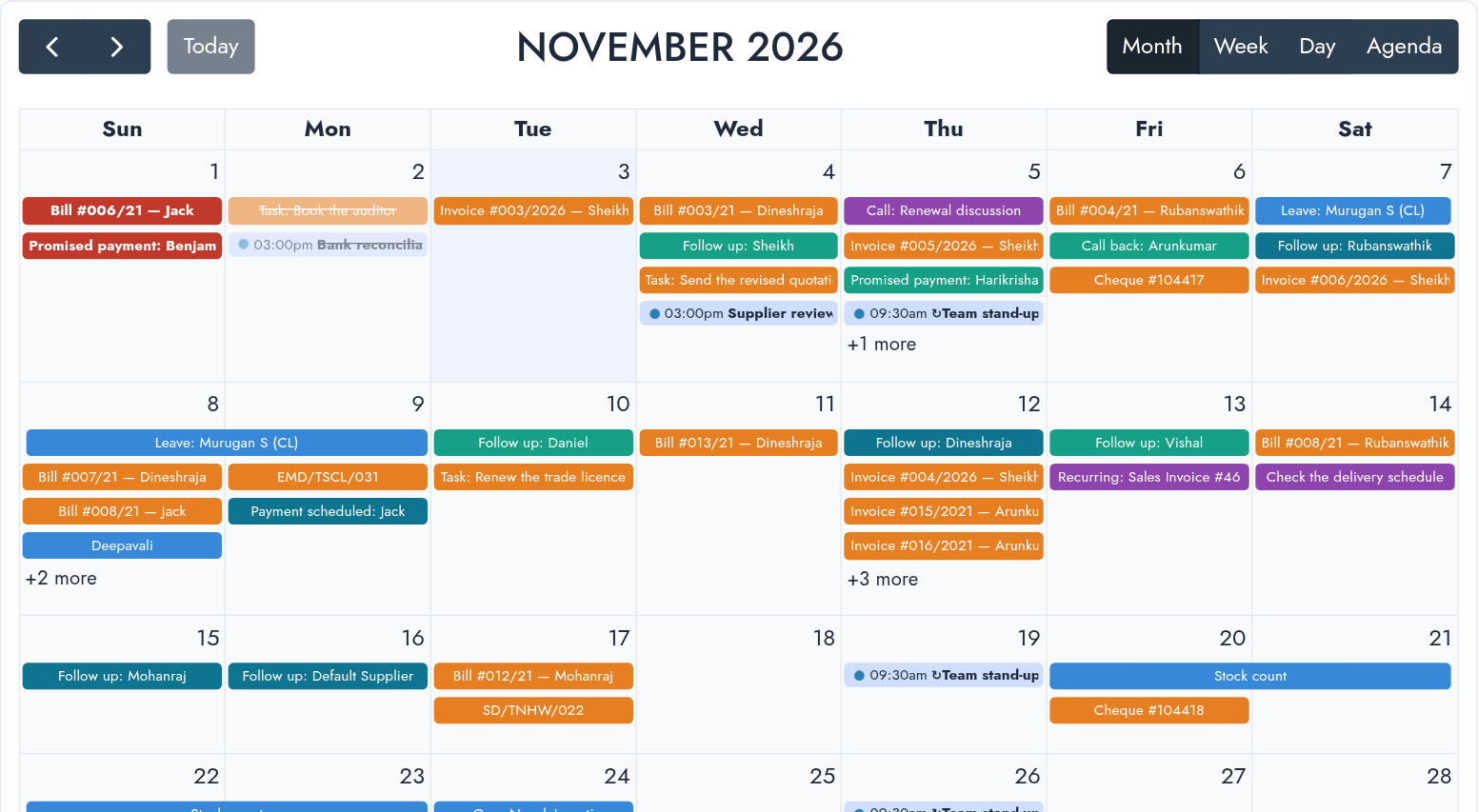
The Calendar app puts everything dated in your ERP onto one screen. It reads directly from your modules, so nothing is copied and nothing goes stale: when an invoice is paid, it simply disappears from the calendar.
What shows on the calendar
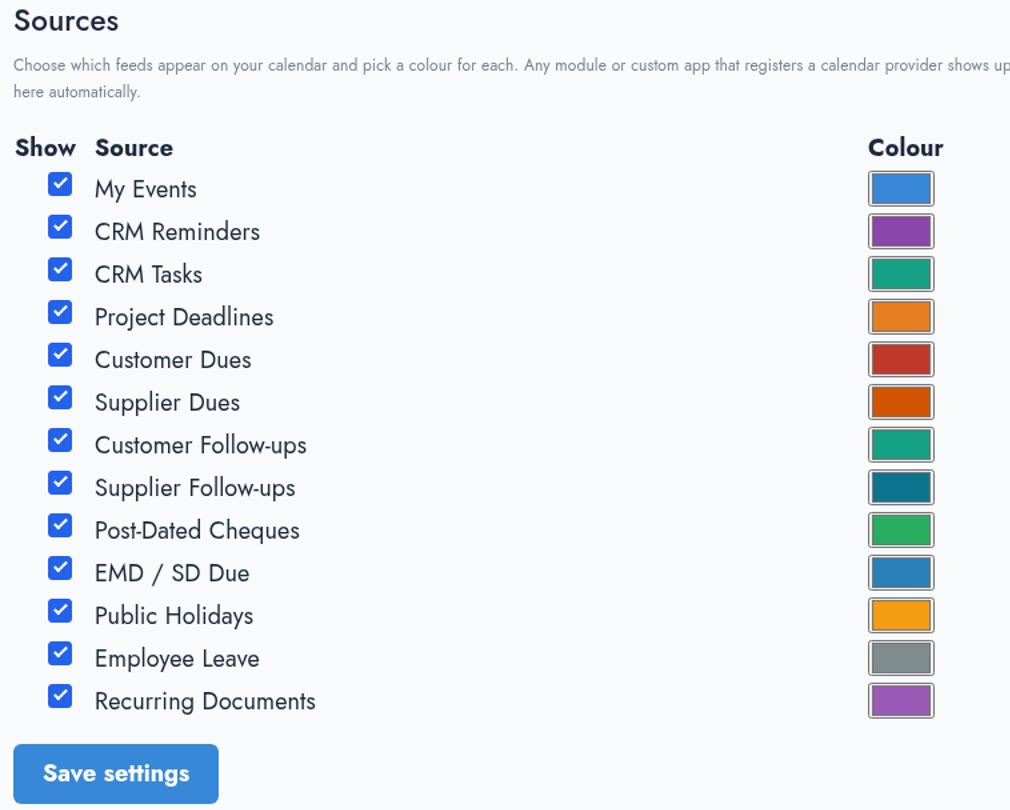
Each kind of work is a source you can show or hide. A source appears only if you use that part of the system, and only for people allowed to see it.
| Source | What you see | Date it sits on | Click it to |
|---|---|---|---|
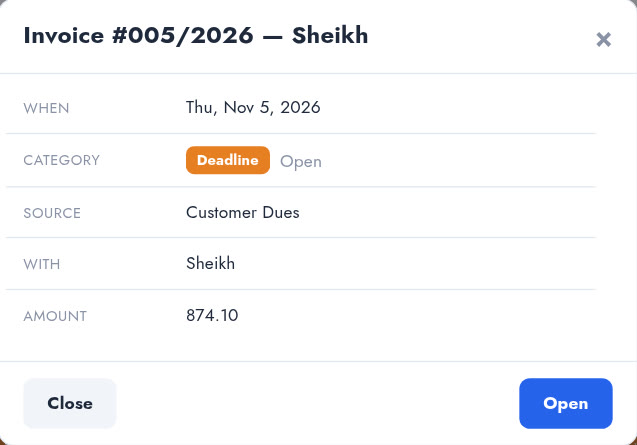
| Customer Dues | Unpaid sales and project invoices, with the balance | Due date | See a detail card, then open the invoice |
| Supplier Dues | Unpaid supplier invoices and expenses, with the balance | Due date | See a detail card, then open the bill |
| Customer Follow-ups | Follow up, Call back and Promised payment, from the Reminders tab in Sales | Next follow-up date, or promised date | Open the follow-up window |
| Supplier Follow-ups | Follow up and Payment scheduled, from the Reminders tab in Purchasing | Next follow-up date, or scheduled date | Open the follow-up window |
| CRM Reminders | Reminders, calls and meetings | Reminder date | See a detail card |
| CRM Tasks | Tasks you are allowed to see | Due date | See a detail card |
| Project Deadlines | Project end dates | Deadline | See a detail card |
| Post-Dated Cheques | Cheques not yet collected, with the amount | Cheque date | See a detail card |
| EMD / SD Due | Tender deposits not yet refunded, with the amount | Due date | See a detail card, then open the deposit |
| Public Holidays | Your company's holiday list | The holiday | See a detail card |
| Employee Leave | Approved leave, across all the days taken | Leave dates | See a detail card |
| Recurring Documents | The next run of each repeating document | Next due date | See a detail card |
| My Events | Events you and your team create on the calendar itself | The date you choose | Edit it |
How to turn it on
- A super admin opens Apps, finds Calendar and clicks Install.
- That is all. Anyone whose role already handles sales, purchases, tasks or setup can open it, and it appears in their menu. There is nothing to configure first.
Reading your day
The four counters
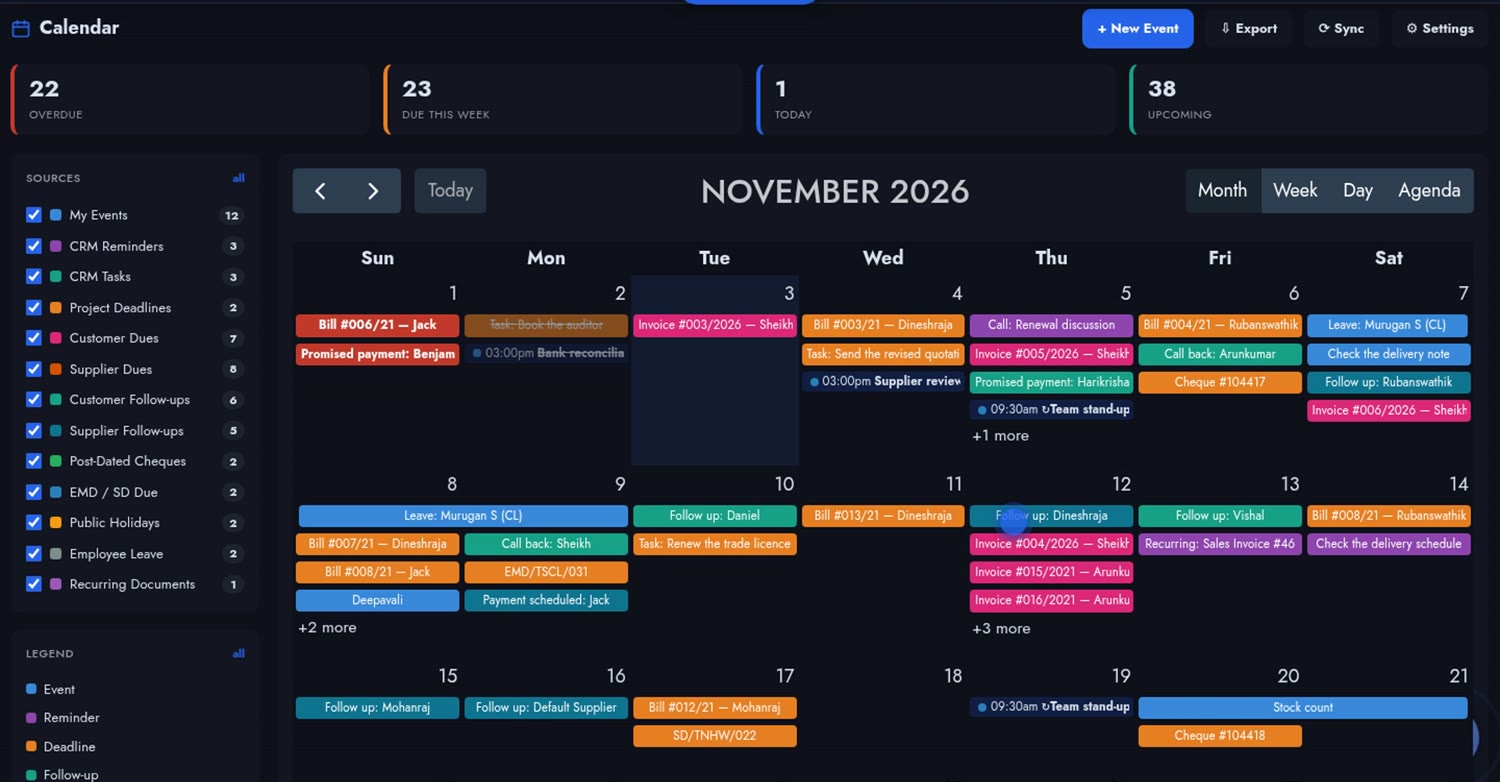
Across the top are Overdue, Due this week, Today and Upcoming. They count across a wide range of dates, so overdue items from past months are not forgotten just because you are looking at this month. Click a counter to jump to those items.

Sources and the legend
The Sources panel lists every source with a count of what it has in the current view. Untick one and its items leave the calendar; the calendar remembers your choice. The all link switches between everything and only your own events.
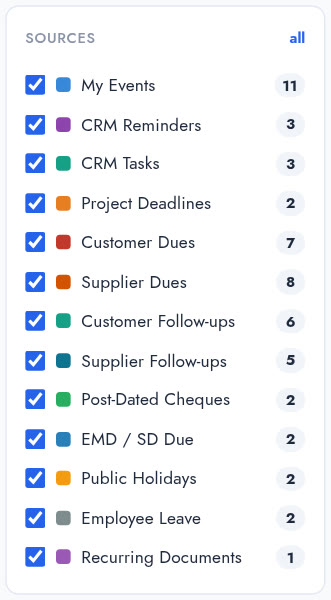
The Legend is a second filter, by type: Event, Reminder, Deadline, Follow-up, Meeting and Overdue. Red always means overdue, whichever module the item came from.
Four views
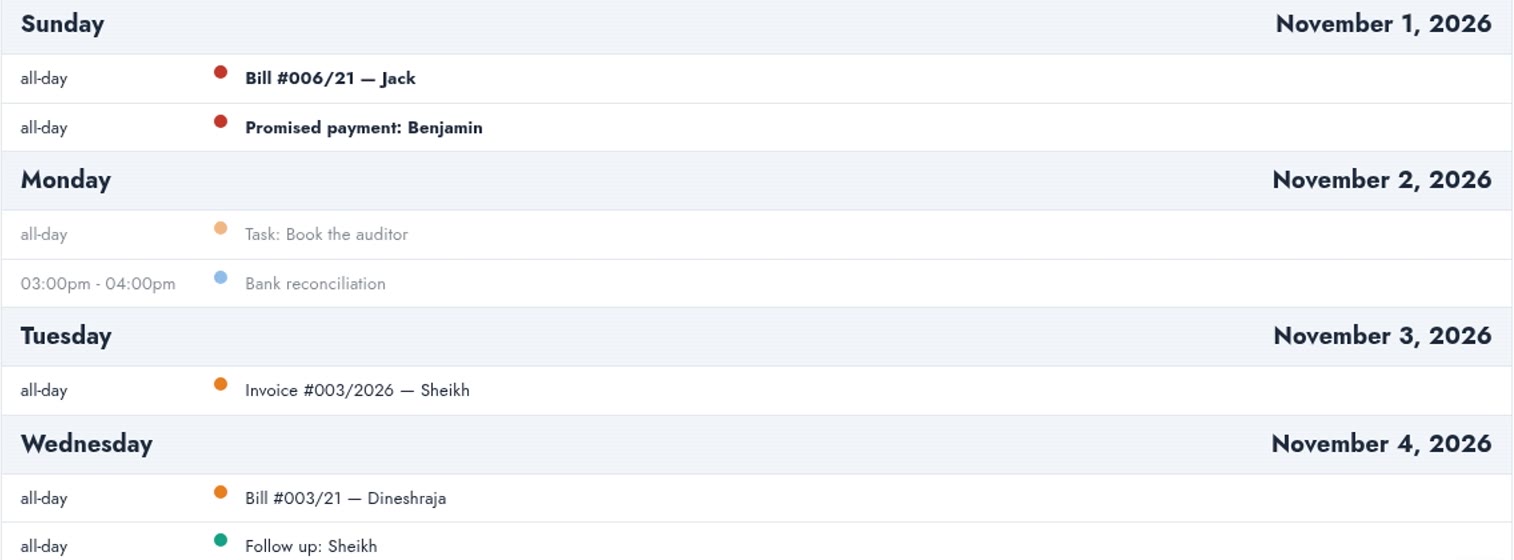
Month, Week with times, Day, and Agenda as a plain list. Click any date number to jump to that day. A busy day shows four items and a link to the rest, so one heavy date never floods the grid.
Payment follow-ups, without switching screens
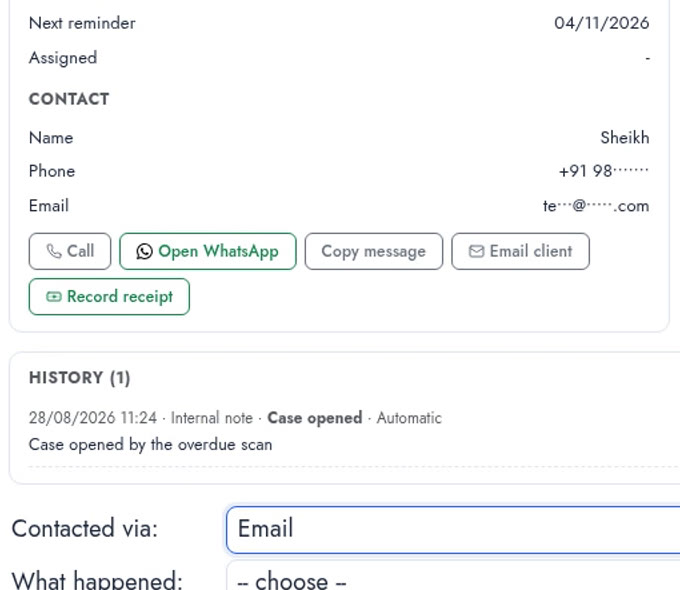
Every open case from the Payment Reminders tabs in Sales and Purchasing appears on the calendar. Nothing is copied: the case's own dates are the events. Click one, and the same follow-up window opens, with the overdue documents, the contact details and the history. Log the call, and the calendar moves the item.
| What the case says | On the calendar |
|---|---|
| Next reminder on the 12th | Follow up: customer name, on the 12th |
| The customer asked us to call back, next reminder on the 9th | Call back: customer name, on the 9th |
| Customer promised 2,000 on the 5th | Promised payment: customer name, on the 5th, showing 2,000 |
| The 5th has passed and the money has not arrived | The same item turns red and joins your Overdue count |
| Supplier payment planned for the 9th | Payment scheduled: supplier name, on the 9th |
| Case closed or paid | Gone from the calendar |
A worked example: one morning
Suppose today is the 3rd. Here is what the calendar shows, and what you do with it.
| Date | Item | Colour | What you do |
|---|---|---|---|
| 1st | Promised payment: Northline Traders, 5,000 | Red | It was promised two days ago. Click it, ring them, log what they said. |
| 3rd | Invoice 003 from Asha Stores, balance 760 | Orange | Due today. Click it, open the invoice, record the receipt when it comes. |
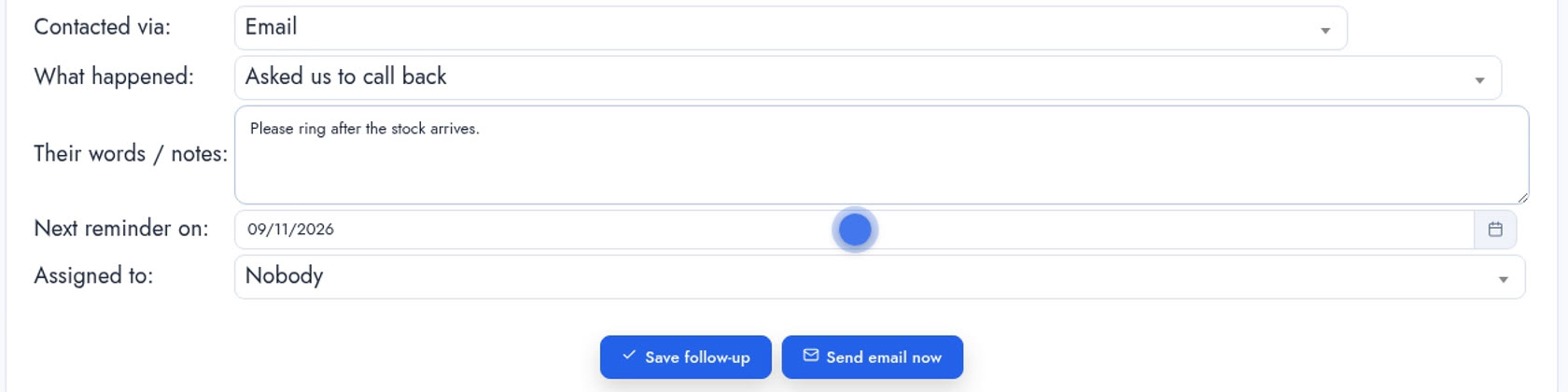
| 4th | Follow up: Asha Stores | Teal | Tomorrow's call. You ring today instead, and they ask you to call back on the 9th. You choose Asked us to call back and set the 9th. The item moves to the 9th and reads Call back. |
| 5th | Bill 007 from Delta Supplies, balance 1,575 | Orange | You can see it is due beside what you expect to receive this week. |
| 7th to 9th | Leave: Ravi (three days) | Blue | You move Thursday's site visit, because Ravi is away. |
| 8th | Deepavali | Blue | The office is closed, so nothing goes on this day. |
Your own events
Click a date or New Event. Give it a title and a type (Event, Reminder, Deadline, Follow-up or Meeting), a start and an end, a location and notes.
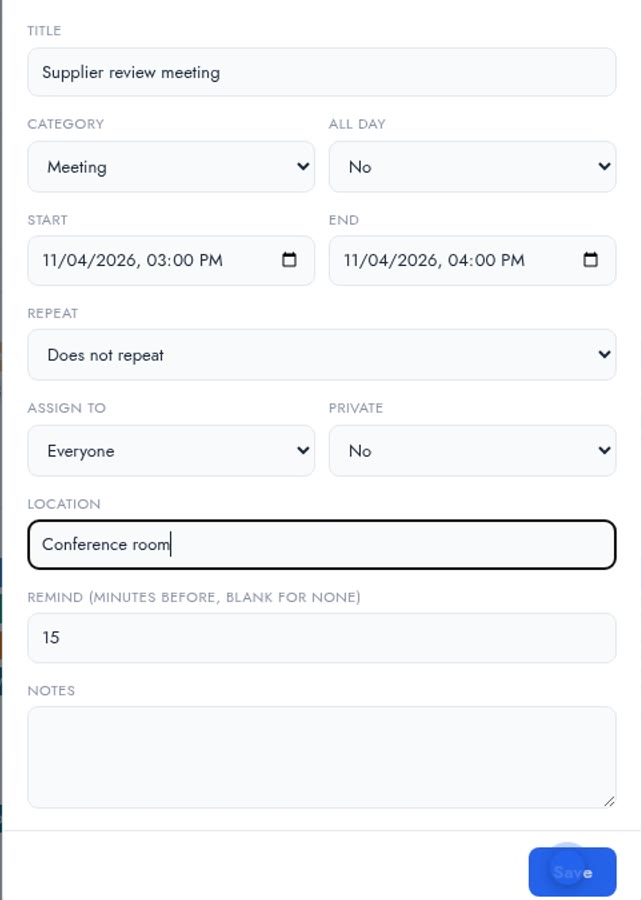
- All day: choose dates only. An event can run across several days, and the last day you enter is included.
- Repeat: daily, weekly, monthly or yearly, with an optional end date. Each occurrence carries a small repeat mark. Opening any occurrence edits the whole series. A monthly event on the 31st falls on the last day of a shorter month.
- Who sees it: by default an event shows for everyone in the company.
- Assign to: give an event to a colleague. It then shows only for them and for you.
- Private: only the owner and the assignee can see it.
- Drag to reschedule: drag an event to another day, or stretch its edge to make it longer. Items from modules stay put, because their dates belong to the invoice or task. Repeating events are changed by opening the series.
- Mark done: it stays on the calendar, struck through, and leaves your counts. You can reopen it.
Reminders
Set Remind (minutes before) on an event. When the time comes, the person it is for (the assignee, or whoever created it) gets a notification in their browser, on a computer or a phone, as long as notifications are allowed for the site. A repeating event reminds before every occurrence, and moving an event moves its reminder.
Tick Reminders by email in the calendar's settings to get them by email too. This needs your company's outgoing email to be set up.
Settings
Settings belong to each person: default view, the first day of the week, the usual reminder time, email reminders, which sources to show, and a colour for each source. Overdue items stay red whatever colour you choose.
Export
Export downloads whatever is on screen, with your sources and filters, as a calendar file (.ics). You can import it into Google Calendar, Outlook or your phone's calendar. It is a copy of that moment, not a live link: to bring in later changes, export again.
Who sees what
| A person without access to… | …does not see |
|---|---|
| Sales invoices | Customer Dues |
| Supplier invoices | Supplier Dues |
| Sales payments | Customer Follow-ups |
| Supplier payments | Supplier Follow-ups |
| Leave | Employee Leave |
| CRM tasks, reminders or projects | Those sources |
Frequently asked questions
Does the calendar copy my data?
No. It reads your invoices, cases, tasks and leave directly each time, so it is always current. The Sync button is optional, for admins, and the calendar is always live without it.
Does the balance match my Invoices tab?
Yes. It uses the same open balance as the Invoices tabs and Payment Reminders, with freight, discounts, round off and tax collected counted. Voided documents are left out.
Can I drag an invoice to a new due date?
No. Items from modules stay where they are, because their dates belong to the document. Open the document to change it.
Does it stay in sync with Google Calendar?
No. Export gives you a file to import, which is a one-time copy. There is no live two-way sync.
Will I get reminders on my phone?
Yes, in your phone's browser where it allows notifications. On an iPhone this means adding the site to your Home Screen first. Email reminders work on any device.
Can I change just one occurrence of a repeating event?
Not yet. A repeating event is edited as a whole series.
Can an event have several people?
An event has one assignee, or is open to everyone. Several attendees is not available yet.
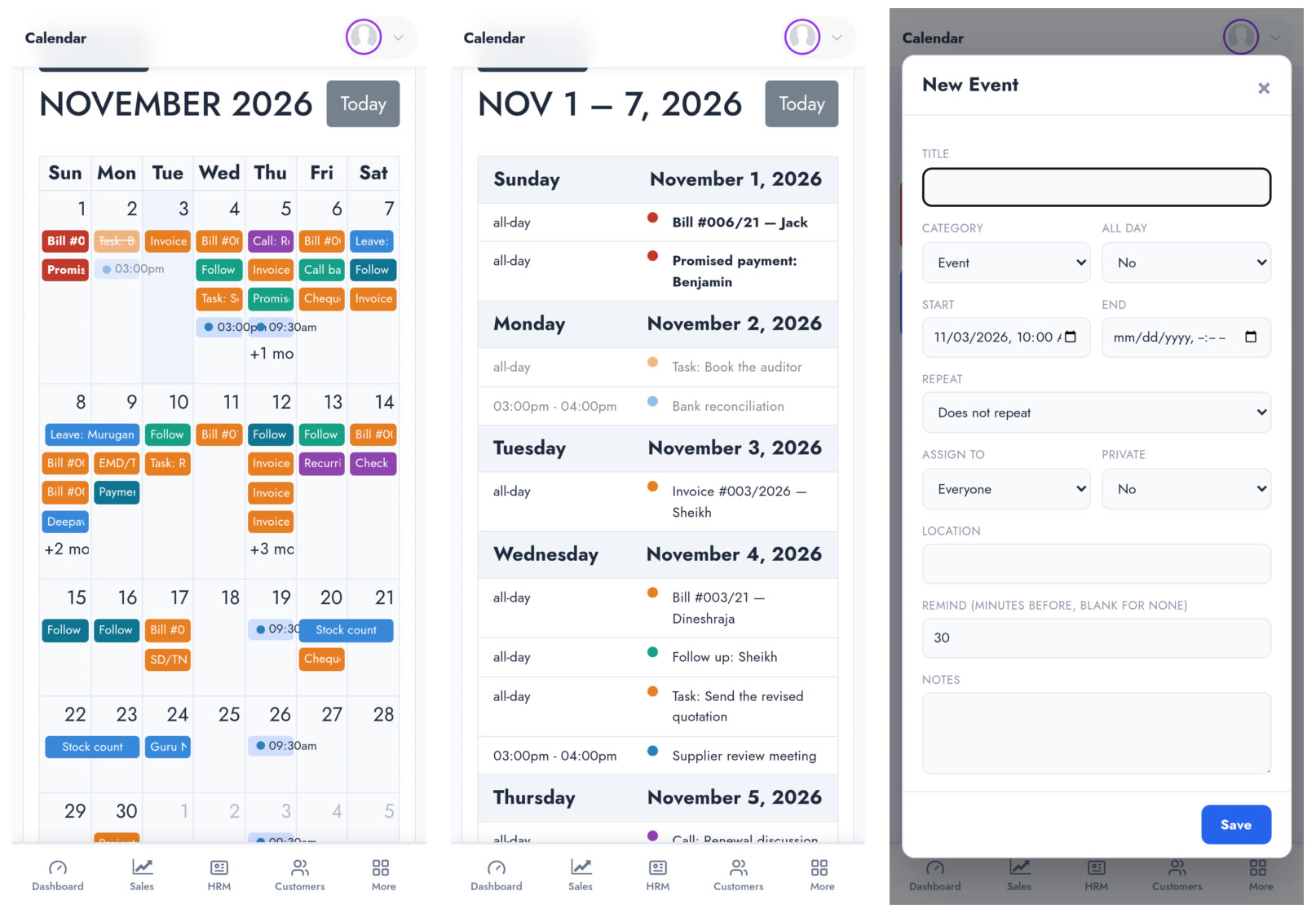
Does it work on a phone?
Yes, in your phone's browser. The calendar comes first, with the sources and legend below it, and the views and the New Event form work there too.
Does it work in dark mode?
Yes. It follows your theme, in light or dark.
See it in action
Watch the full walkthrough or the 47-second version. To start using it, a super admin opens Apps, finds Calendar and clicks Install.