
Most teams already chat all day about their invoices, orders and customers. The trouble is where they do it: on a personal phone app that knows nothing about the business. Someone asks about an invoice, someone else pastes a screenshot, and an hour later nobody can find either. Team Chat moves that conversation into TamilAccounting, right next to the records it is about.
Watch it: the full walkthrough (6 minutes) or the quick version (49 seconds).
What Team Chat gives your team
- Direct chats and group chats between the users of your company, with no personal phone numbers to share.
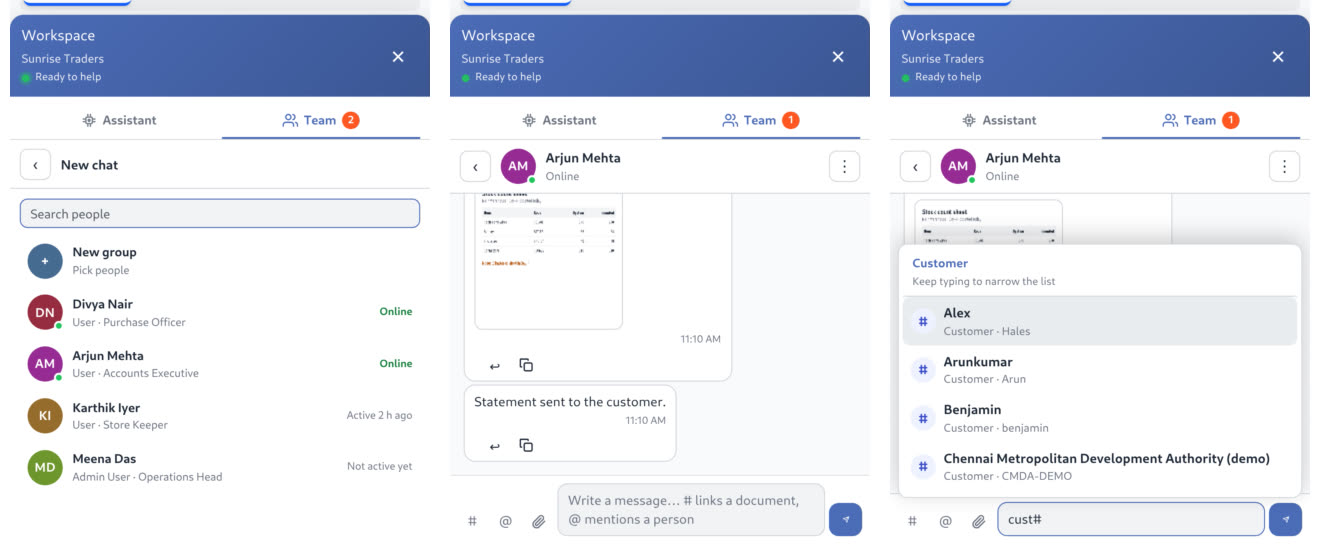
- Hash links to any record. Type a word and a hash, pick the record, and it becomes a link that opens in a popup for everyone in the chat.
- Files. Attach documents and photos, or drag them in. Risky file types are refused.
- Live status. See who is online, and when anyone else was last active.
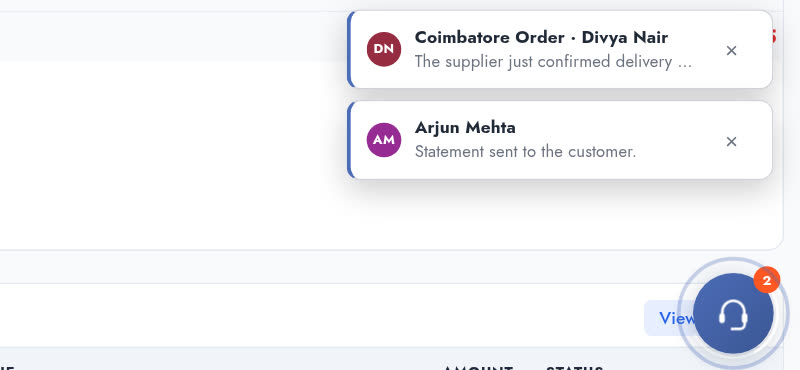
- Notifications that find you. A pop-up on any screen, a system notification when the browser is in the background, and a summary of what you missed when you come back.
How to turn it on
Team Chat is off for every company until you choose to use it.
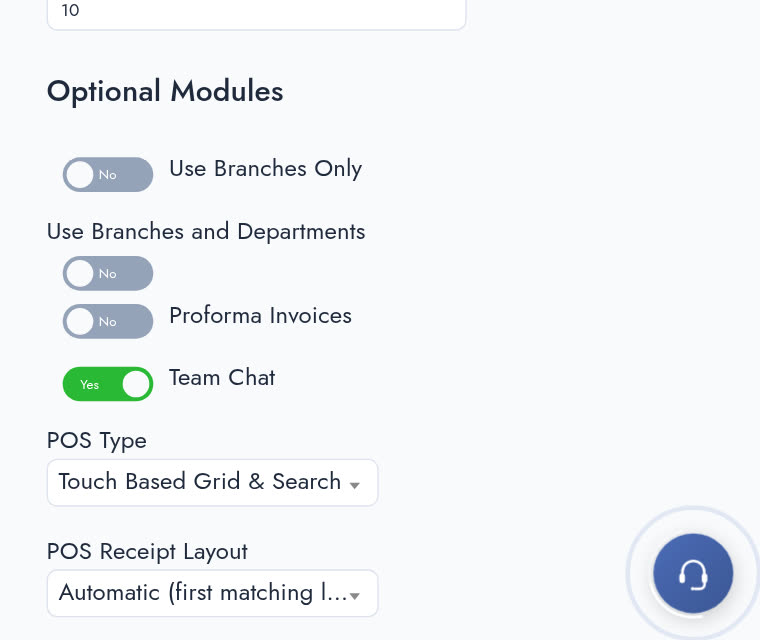
- Go to Setup → Company Setup.
- Under Optional Modules, switch Team Chat to Yes. It saves straight away.
- Everyone in the company now sees a Team tab inside the chat bubble, in the corner of every screen.
- When the browser asks, allow notifications once.
Starting a chat
Press the + button. The list shows your colleagues with whoever is online first, then whoever was active most recently. Each row tells you what you need in order to choose:
| Name | User type and role | Status |
|---|---|---|
| Arjun Mehta | User · Accounts Executive | Online |
| Divya Nair | User · Purchase Officer | Online |
| Karthik Iyer | User · Store Keeper | Active 2 h ago |
| Meena Das | Admin User · Operations Head | Not active yet |
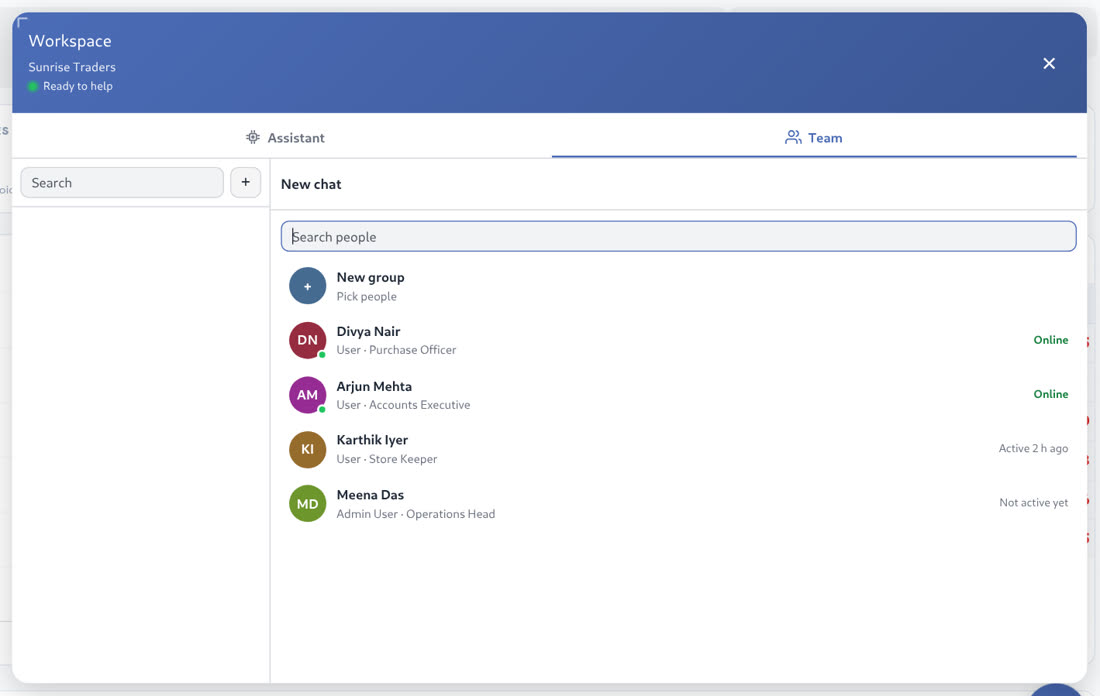
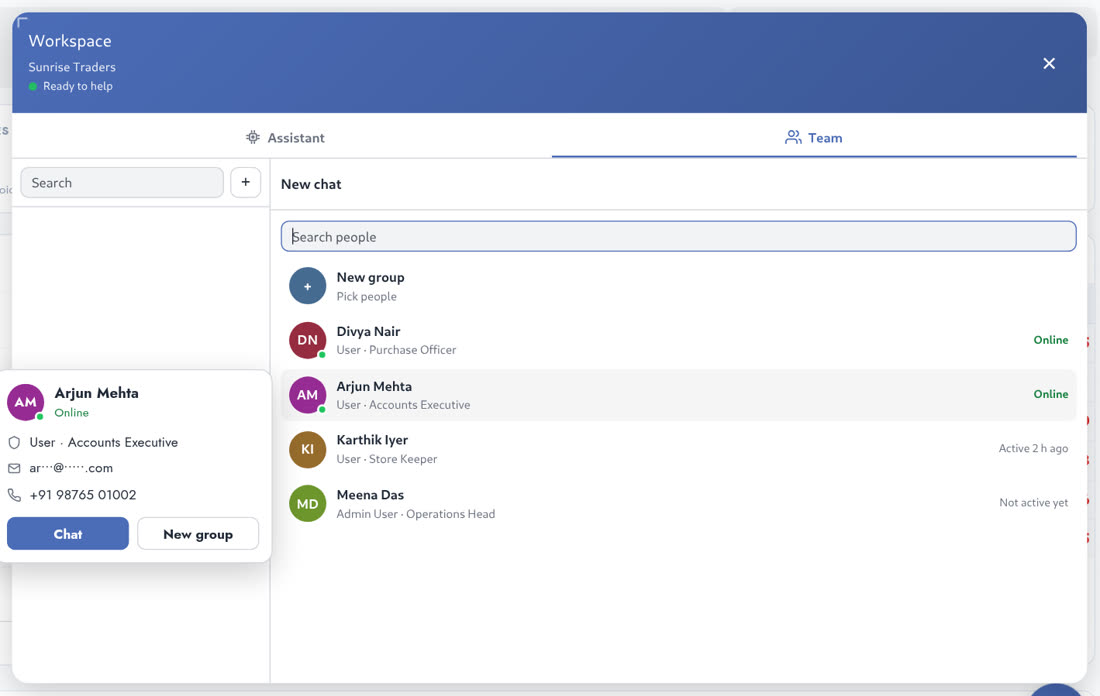
Search by name or email if the list is long. Rest your pointer on anyone to see their card, with their email and phone number and buttons to Chat or start a New group. If two people start the same direct chat at the same moment, they land in one conversation, never two.
Hash links: the record is one word away
This is what sets Team Chat apart from a general chat app. In the message box, type one of these words followed by #. The list header tells you what you are looking at, and typing more narrows it down. Press Enter to drop the link into your message.
| Type this | You get |
|---|---|
| task# or tsk# | Tasks |
| cust# or customer# | Customers |
| supplier# or vendor# | Suppliers |
| invoice# | Sales invoices and supplier invoices together |
| order# | Sales orders, work orders and purchase orders together |
| bank# | Bank transactions, including those from your own custom transaction types |
| item#, employee#, project# | Items and services, employees, projects |
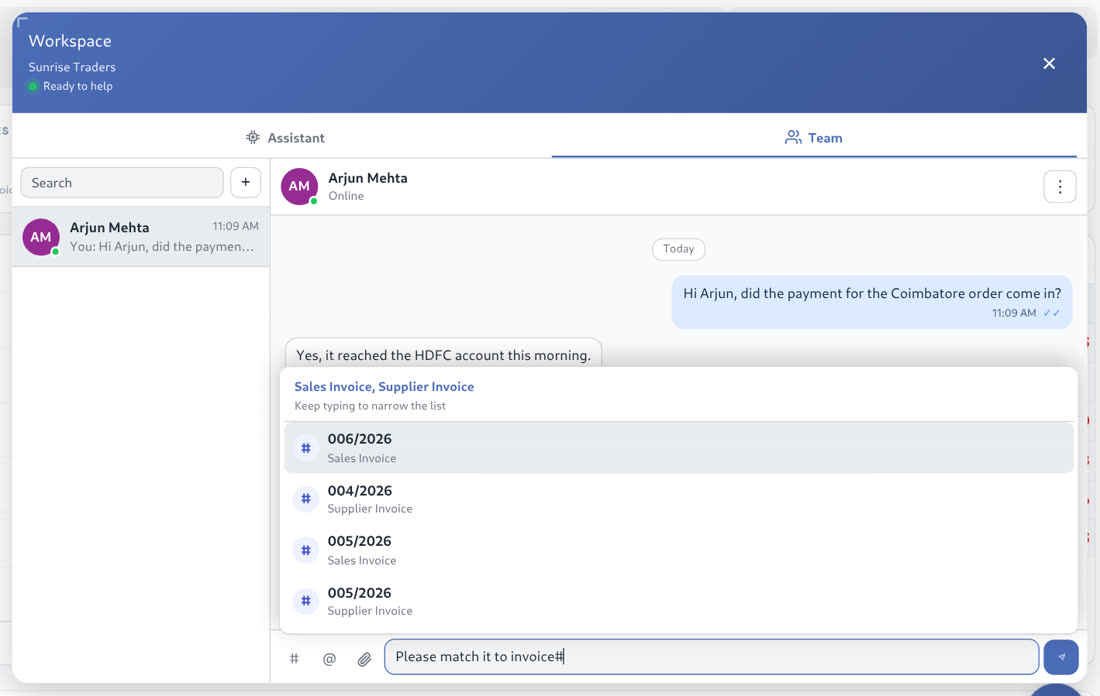
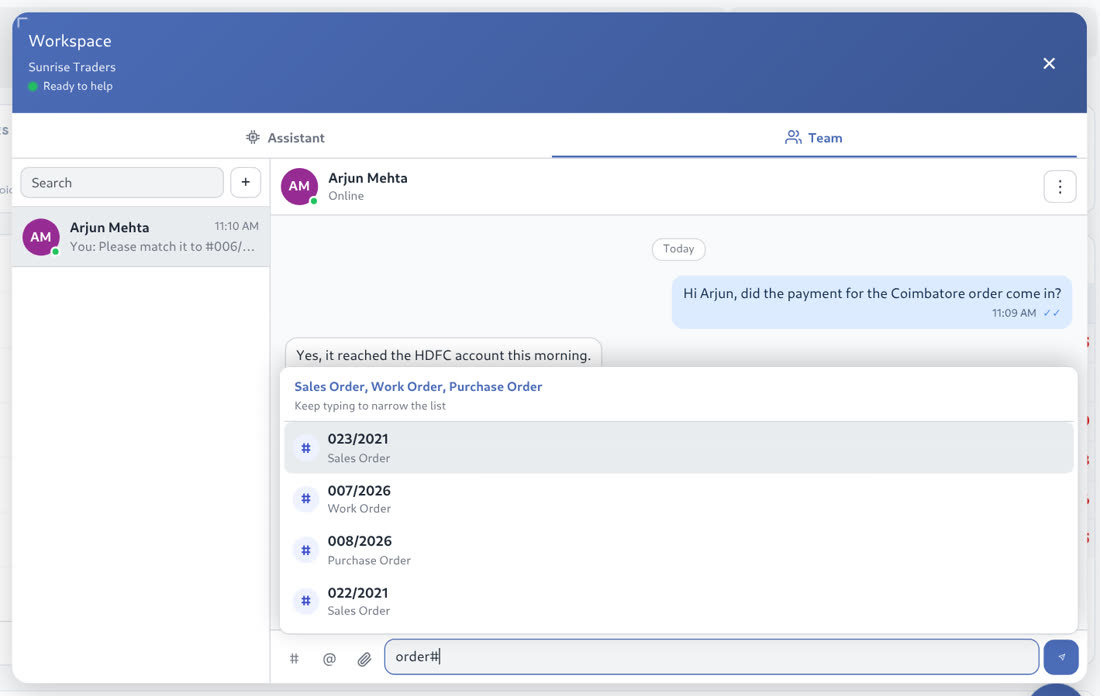
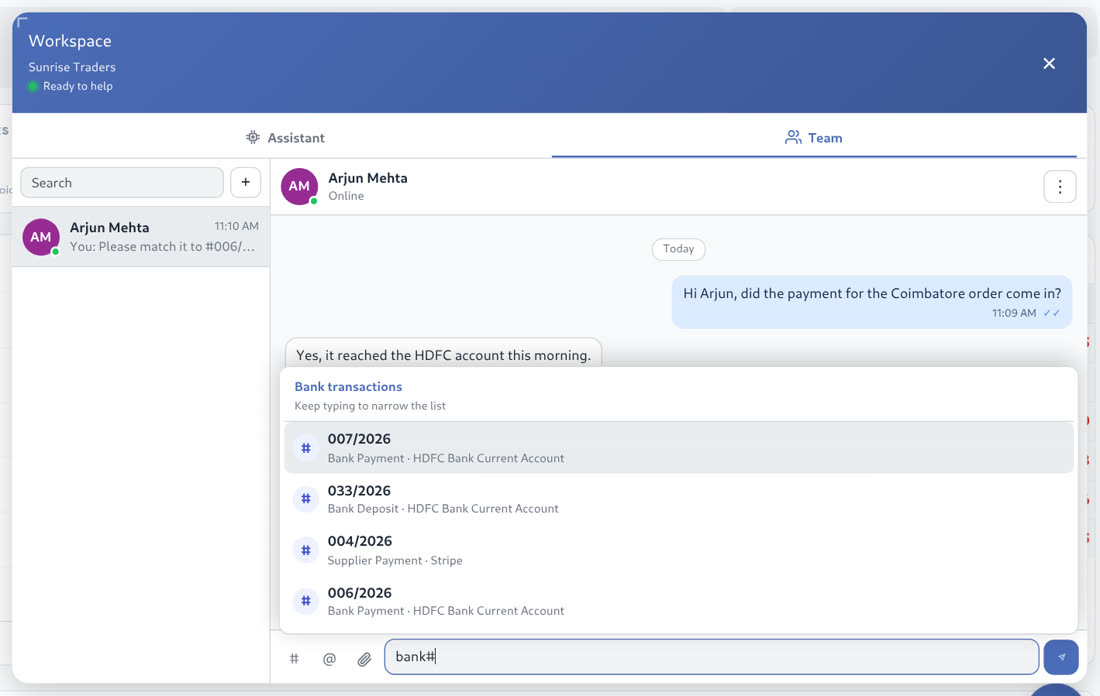
These words also work in Arabic, Tamil, Chinese and Kurdish. Typing just # and a few letters searches everything at once.
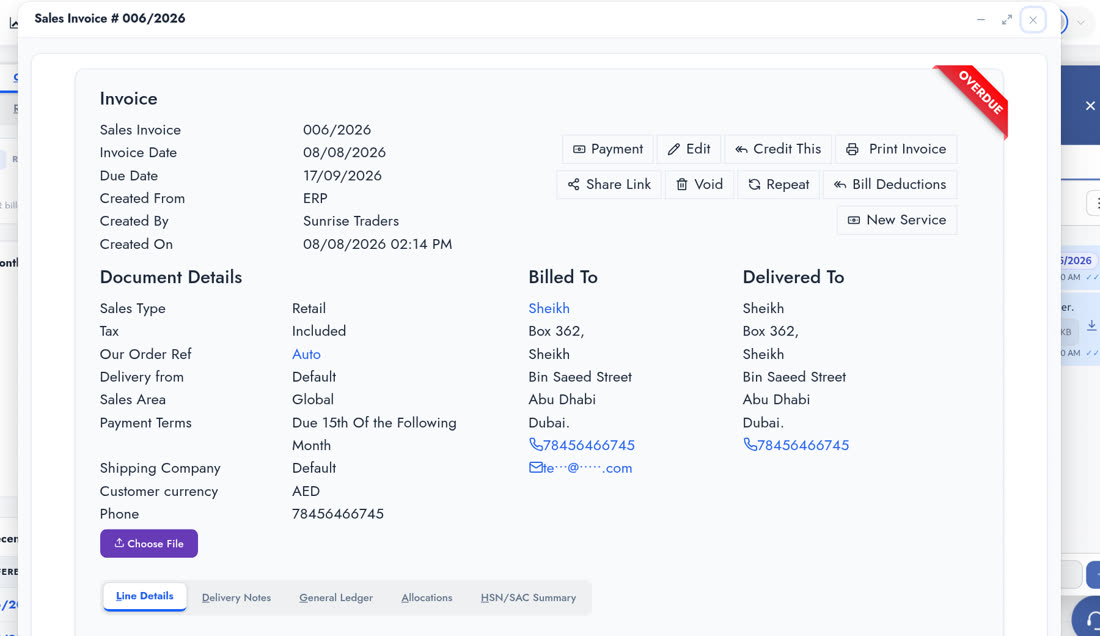
When someone clicks the link, the record opens in a popup over the screen they were on. Each person still sees only what their own permissions allow.
Files and photos
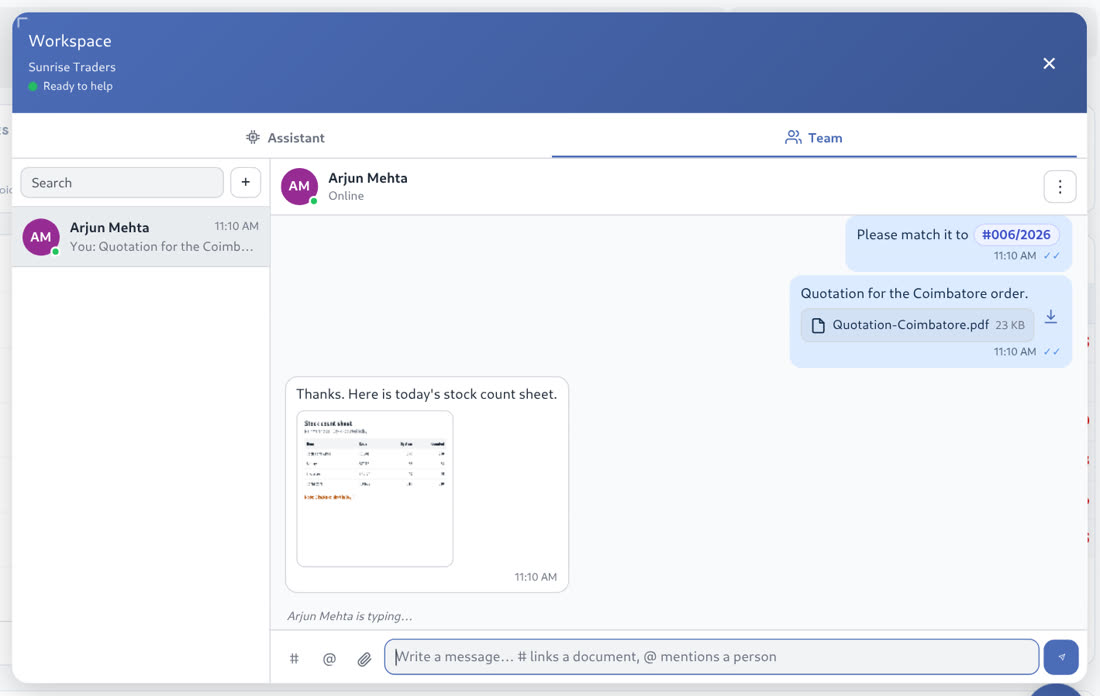
Use the paperclip, or drag a file into the chat. Photos show right in the conversation, and documents open or download with one click. Risky file types are refused.
Group chats
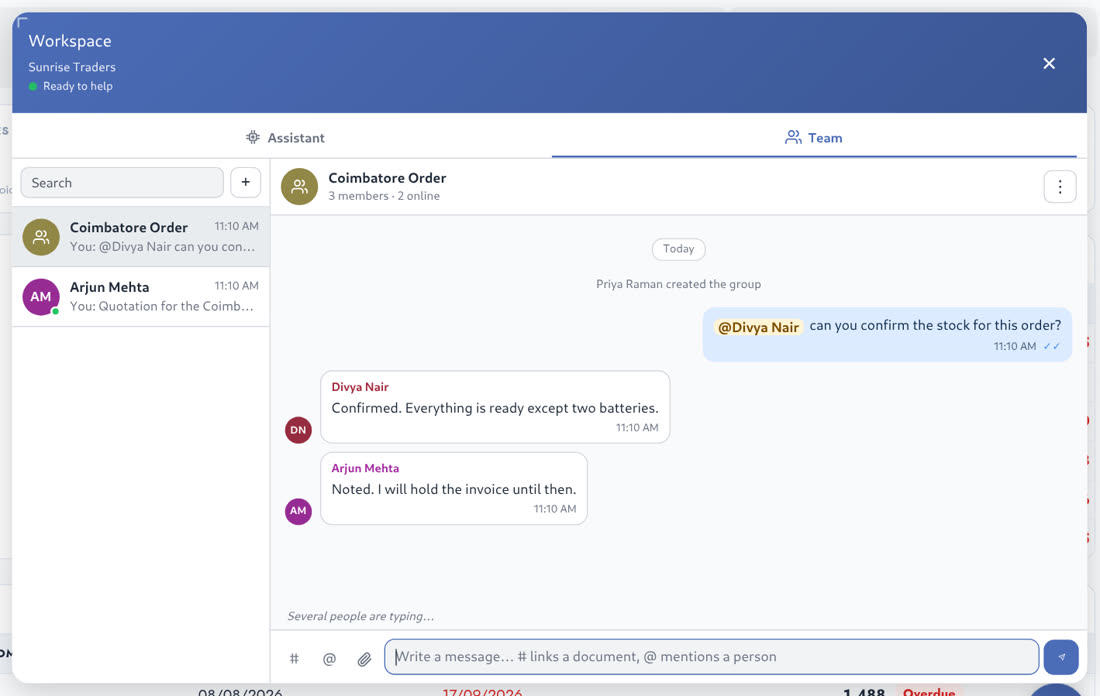
Press +, choose New group, pick the people, give it a name and press Create. Type @ to call someone by name, so they know the message is for them. From the menu, the person who created the group can rename it and add or remove members, and anyone can mute a busy group or leave it.
A worked example
| Who | Message | What happens |
|---|---|---|
| Priya | Did the payment for this customer come in? (with a cust# link) | Arjun gets it live, and clicks the link to open the customer. |
| Arjun | Yes, it reached the bank this morning. (with a bank# link) | Priya sees Arjun typing, then the reply, with no refresh. |
| Priya | Please match it to this invoice. (with an invoice# link) | The tick shows when Arjun has read it. |
| Divya | Stock count sheet attached. | The photo shows in the chat. Priya, on another screen, gets a pop-up. |
Notifications
| Where you are | What you see |
|---|---|
| In that chat | The message simply appears. No pop-up on top of what you are reading. |
| On any other ERP screen | A pop-up in the corner, and a count on the chat bubble. Click it to open the chat. |
| Browser in the background | A system notification with the sender and the message. |
| Away, then back | A summary of who wrote and how many messages, as soon as you return. |
Frequently asked questions
Who can chat with whom?
The active users of your company. Each company's chats are separate.
Does it need a phone number?
No. People chat by their ERP user, so nobody has to share a personal number.
Can I edit or delete a message?
You can edit your own message within 15 minutes, and delete your own messages. A group's creator can also remove messages in that group.
What about dark mode and Arabic?
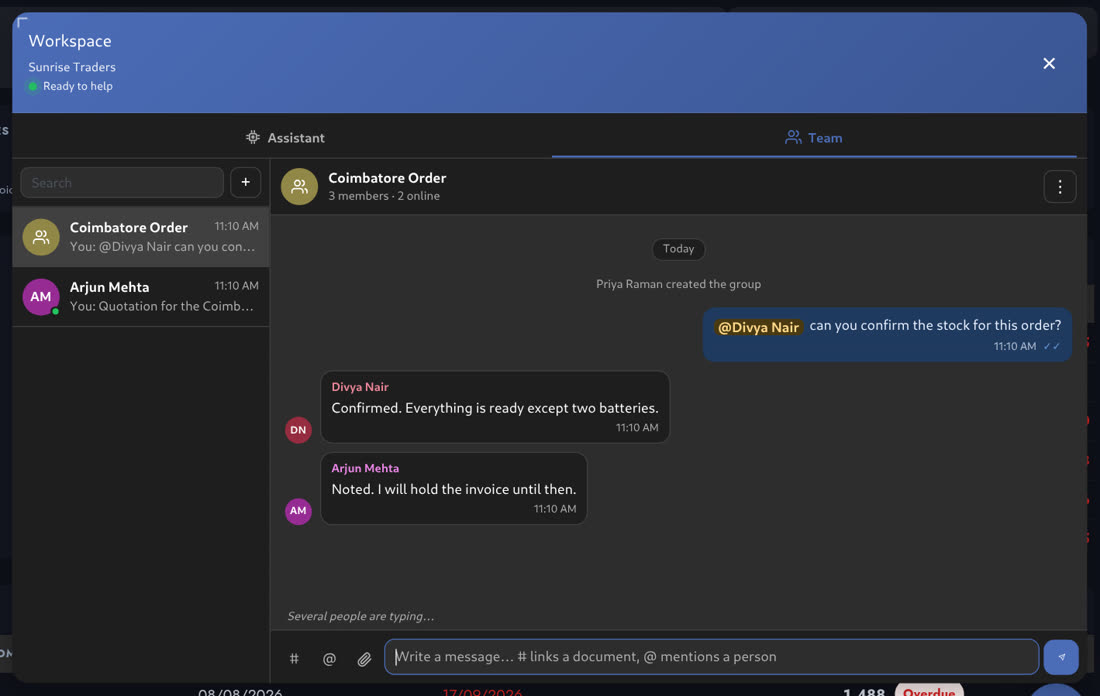
Team Chat follows your theme, including dark mode, and supports right-to-left languages.
Does it fit a narrow screen?
Yes. On a phone-sized screen, the list and the chat take turns filling the window.
See it in action
Watch the full walkthrough or the 49-second version. To start using it, switch on Team Chat in Setup → Company Setup.