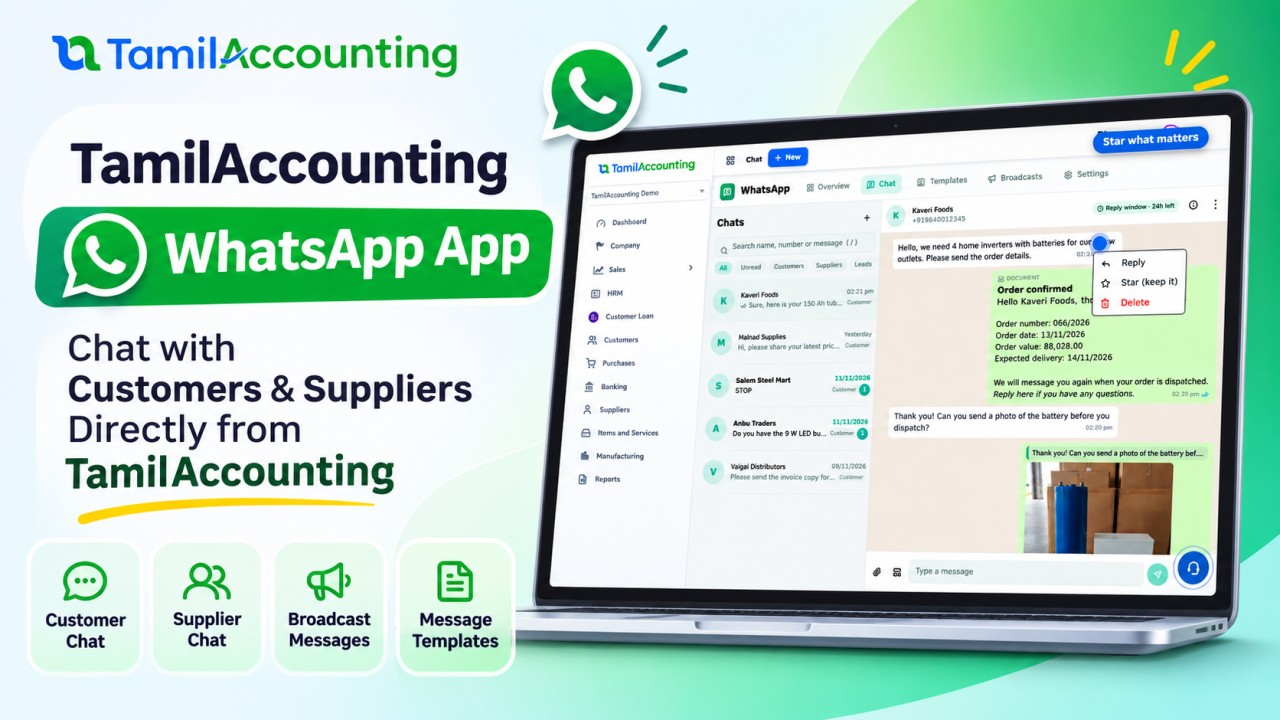
Your customers already live on WhatsApp. They ask for prices there, confirm orders there and send payment screenshots there, usually to somebody's personal phone, where nobody else in the team can see the conversation and nothing reaches the books. The WhatsApp app in TamilAccounting moves those conversations into the ERP: one business number, shared by the team, linked to the customer, supplier or lead it belongs to, with documents that send themselves when you save them.
What the WhatsApp app does
- Chat with customers, suppliers, leads and employees from inside TamilAccounting, with photos, PDF documents, audio and video in both directions, and sent, delivered and read ticks.
- Send documents automatically: link an approved template to a document type, such as Sales Order, and every order you save sends its confirmation on WhatsApp, filled with that order's details.
- Build templates and send them to Meta for review without leaving the ERP, then follow how many were sent, delivered, read or failed.
- Broadcast a marketing template to a list of customers, now or at a time you choose, with every person's own name filled in and opt-outs respected.
- See the cost: the Overview shows Meta's approximate charges for delivered messages.
It uses Meta's official WhatsApp Cloud API on your own business number, so there is no unofficial gateway, no phone that has to stay switched on, and no risk of the number being banned for using an unofficial app.
Before you start: what you need from Meta
You need a Meta Business account, a WhatsApp Business Account with a phone number added to it, and a Meta app with the WhatsApp product. The number cannot be active in the WhatsApp or WhatsApp Business phone app at the same time. Meta asks for a number that is not registered there, or one you move across from it.
How to connect your number: five steps
Open Apps, install WhatsApp and open its Settings tab. Each field has a How to get it guide with the exact clicks in Meta.
- From Phone Number: your WhatsApp business number with the country code, digits only, for example 919840012345.
- Phone Number ID: not the number itself but Meta's ID for it, 15 or 16 digits. It is on the API Setup page of your Meta app.
- WhatsApp Business Account ID: the account that owns the number and its templates, on the same page.
- Access Token: use a permanent System User token from Meta Business Settings → System users, with the whatsapp_business_messaging and whatsapp_business_management permissions and expiry set to Never. The temporary token on the API Setup page stops working after 24 hours.
- App Secret: from the Meta app's Basic settings. TamilAccounting uses it to check that every incoming call really comes from Meta.
Press Save settings, then Test connection. Finally, copy the Webhook URL and Verify Token shown on the same page into your Meta app's WhatsApp → Configuration, and subscribe to the messages field. The webhook URL is the same for every company on the server: each call from Meta carries the phone number ID, and TamilAccounting delivers it to the company that uses that number.
Once saved, the token and app secret are always shown masked. Only users with the WhatsApp setup permission can see or change Settings.
Chatting with customers
The Chat tab looks and works like WhatsApp Web. Chats are filtered by All, Unread, Customers, Suppliers and Leads, and the search finds a name, a message, or a number typed in any format: with or without the country code, with spaces or dashes. New messages arrive live, with no refresh.
The Contacts tab lists everyone the ERP already knows, including customers, suppliers, leads and employees with a phone number. Press Chat next to any of them to start a conversation.
A message can be starred. Starred messages are never removed by the history cleanup described below until you unstar them.
Meta's 24-hour rule
WhatsApp lets a business write freely only within 24 hours of the customer's last message. Outside that window, only an approved template can be sent. The chat composer shows which state the chat is in. When the window is closed it switches to your approved templates by itself: pick one, fill in its fields, and preview the message before you send it.
| Situation | What you can send | Meta charge |
|---|---|---|
| The customer wrote within the last 24 hours | Any text, photo or document | Free |
| A utility template inside that 24-hour window | The template | Free |
| More than 24 hours since the customer last wrote | An approved template only | Charged by category |
| A marketing template (offer, greeting, news) | An approved marketing template | Charged |
Documents that send themselves
Link an approved template to a document type on the Templates tab, for example sales_order_confirmation to Sales Order. From then on, every sales order you place sends that template to the customer's WhatsApp number. Its fields fill from the order: the customer's name, order number, order date, order value and delivery date. The message is queued with the document when you save it, goes out within a minute, and appears in the customer's chat marked as sent from the document. If Meta refuses it, the chat shows Meta's reason.
Worked example. Kaveri Foods places order SO-0062 on 11/11/2026 for ₹48,500, for delivery on 14/11/2026. The template body
Hello {{1}}, thank you for your order. Order number: {{2}} Order date: {{3}} Order value: {{4}} Expected delivery: {{5}}
reaches the customer as:
Hello Kaveri Foods, thank you for your order. Order number: SO-0062 Order date: 11/11/2026 Order value: ₹48,500.00 Expected delivery: 14/11/2026
Which documents can send themselves
| Customers | Suppliers |
|---|---|
| Quotation | Purchase order |
| Sales order | Goods received note |
| Delivery | Supplier invoice |
| Sales invoice | Supplier credit note |
| Customer receipt | Supplier payment |
| Credit note |
Each document type takes one approved template; its fields are filled from the document being saved: the party's name, the reference, dates, amounts and so on.
Push notifications for replies
When a customer, supplier or lead writes to your business number, TamilAccounting sends a push notification to the person who last answered that chat; when nobody has answered it yet, the whole team gets it. It reaches the browser even when the ERP is in the background, and phones signed in to the TamilAccounting app. In the browser, clicking the notification opens that contact's chat, ready to reply. Allow notifications in your browser the first time the ERP asks.
Building templates
New template opens the builder:
- Category: Marketing for offers, greetings and news. Utility for messages about a customer's own order, invoice or payment. Authentication for one-time codes.
- Header: none, text, or an image, video or document.
- Body: the message, with named fields such as {{first_name}} that fill in for each person.
- Footer and buttons: quick replies, a website link or a phone number.
The preview shows the message as a customer will see it. Submit for review sends it to Meta. The status (Pending, Approved or Rejected, with Meta's reason) updates on the Templates tab. Import from Meta brings in templates you already created in Meta. Each template's view shows how many were sent, delivered, read and failed.
Broadcasts
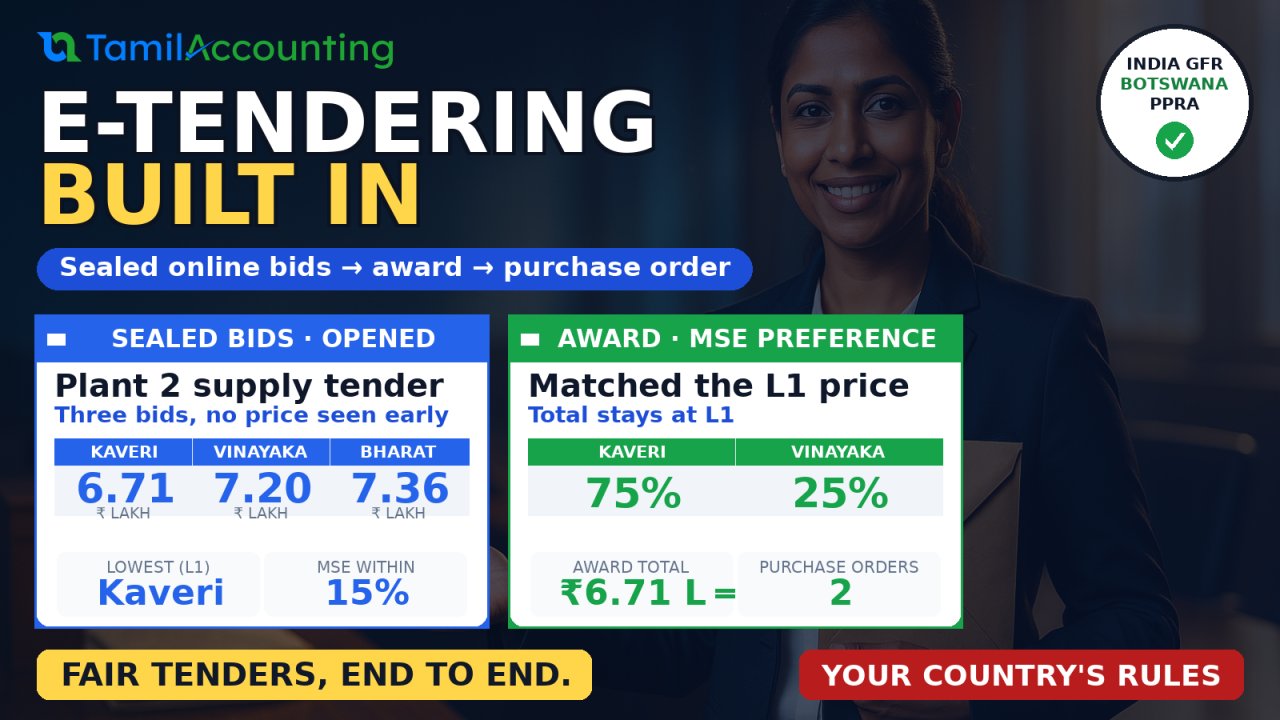
The Broadcasts tab keeps lists of people: customers, suppliers or leads from the ERP, added by type or one by one. Send template sends one approved marketing template to the whole list, now or at a time you schedule. Until it goes, a scheduled send can be cancelled. Each send lists every recipient with their delivery status.
Lists take marketing templates only. Utility and authentication templates are about one customer's own order, payment or code, so they go one at a time, from the chat or from the document.
Opt-outs
When a customer replies STOP, taps Stop promotions, or turns off marketing messages in WhatsApp itself, they are added to Opt-outs. Broadcasts skip them until they write START. Order and payment messages still reach them.
What the free plan keeps
The WhatsApp app is free, so the history is cleared from time to time. The Settings page states the limits:
| What | Kept for |
|---|---|
| Messages | 90 days |
| Photos, documents and other files | 30 days (the message stays, marked as removed) |
| Messages per company | Up to 20,000 (the oldest go first) |
| Starred messages | Always, until you unstar them |
The cleanup runs once a night.
What it costs
TamilAccounting does not charge for the app. Meta charges your WhatsApp Business Account directly for templates it delivers. The price depends on the category (marketing, utility, authentication) and the customer's country. Replies inside the 24-hour window are free, and so are utility templates sent inside it. The Overview tab shows message counts, the read rate, and Meta's approximate charges for the last 7, 30 or 90 days.
Frequently asked questions
Can I keep using the WhatsApp Business app on my phone with the same number?
Not at the same time. A number used with the Cloud API cannot be logged in to the WhatsApp phone app. Many businesses connect a second number to the ERP and keep the old one for personal use.
Why did a message fail?
The chat shows Meta's reason under the message. The most common reasons are: the number is not on WhatsApp; more than 24 hours have passed, so a template is needed; or the customer has turned off marketing messages.
Does it work for more than one company?
Yes. Each company connects its own number in its own Settings, and all of them use the same webhook URL.
Can the team see who answered?
Every message records the user who sent it, and documents and broadcasts are marked as such in the chat.
Does it work in the TamilAccounting mobile app?
Yes. In the new TamilAccounting app, WhatsApp opens full width on a phone, a tablet or a desktop.