As a business grows into several branches and departments, a quiet problem creeps into its task list: everyone can see everyone's work. A receptionist in a remote branch opens the to-do list and finds head-office tasks. A branch cashier sees what the accounts team is chasing. It isn't a security breach so much as a lack of separation of concern — but it clutters screens, blurs accountability, and makes managers uneasy about privacy. TamilAccounting now solves this the way an organisation naturally thinks about it: with an organisation chart.
Draw your company's real reporting structure once — who reports to whom, in which branch — and the system quietly uses it to decide whose tasks and to-dos each person can see. A manager sees their team. A branch sees itself. Nobody sees up the ladder. And because the same chart also drives permissions, setting up new roles becomes far quicker. This article covers how the structure is defined, the ways you can set it up, a full worked example, and how to verify it is doing exactly what you expect.
How the structure is defined
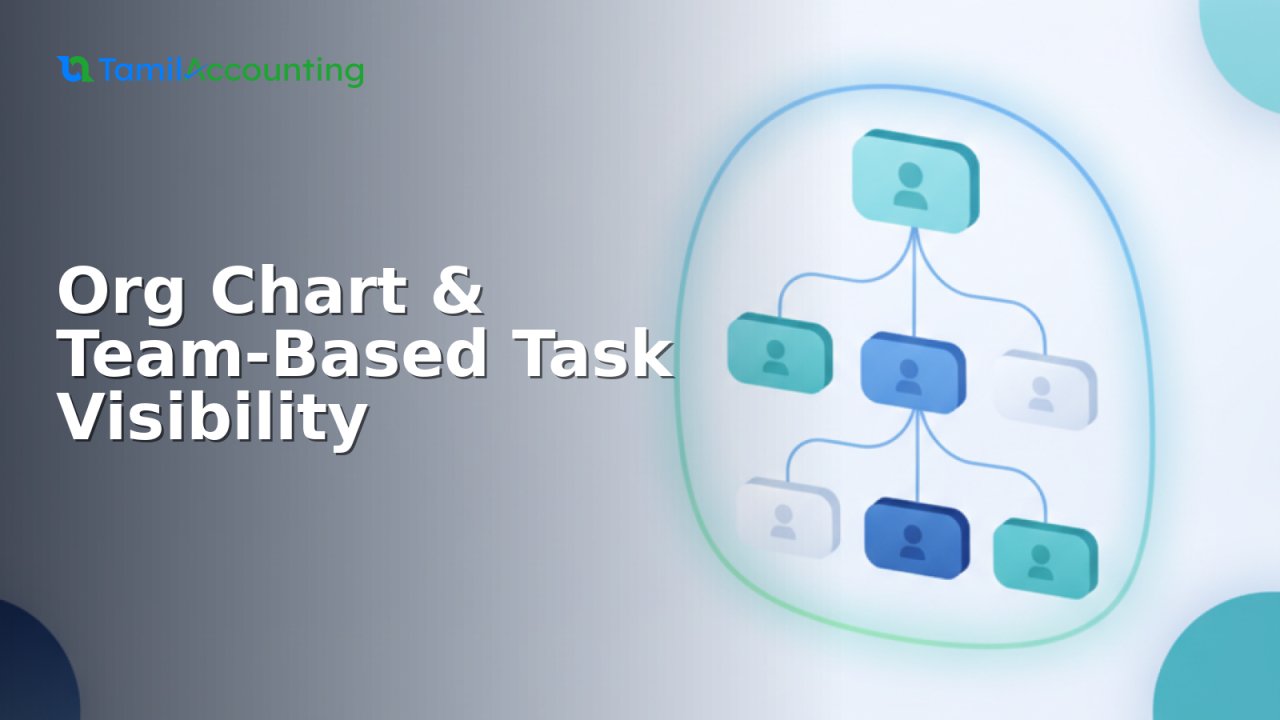
Everything lives under Users & Void → Roles & Permissions, where your roles now appear as a visual organisation chart — a card for each role, connected top-to-bottom into a tree. Four simple building blocks define the whole structure:
| Building block | What it is | What it controls |
|---|---|---|
| Role | A card on the chart (e.g. Branch Manager, Accounts Officer, Reception). | The job the people under it do, and the permissions they carry. |
| Reports To | The parent card a role sits beneath. | The tree itself — the line of command that visibility flows down. |
| Team Visibility | Own records only · Direct reports · Whole team (everyone below, recursively). | How far down the chart this role can see other people's tasks. |
| Branch Access | Own branch only · All branches. | Whether the role is limited to its own branch, or may see every branch. |
People are then placed on the chart simply by giving each user a role. On every card the users are grouped by type — Super Admin, Admin, then User — so the structure is easy to read at a glance. The golden rule that falls out of these blocks: you see the tasks of everyone in your part of the tree, scoped to your branch, and never your seniors'.
The ways you can set it up
Because visibility is driven by the chart, a handful of common shapes cover almost every business. Mix and match them per role:
- Chain of command — the classic pyramid. Give senior roles Whole team visibility and they see everything beneath them, level after level. The top of the tree sees the whole company.
- Company-wide oversight — a role like Accounts or HR that must see all activity below it, across every branch: Whole team visibility + All branches access. Because their seniors sit above them on the chart, those seniors are automatically out of view — you never write an “except the manager” rule.
- Branch-scoped manager — a Branch Manager who runs their own branch and nothing else: Whole team visibility + Own branch only. They see every role in their branch, but not other branches or head office.
- Front-line staff — reception, cashier, data entry: Own records only. They see just their own tasks and to-dos, keeping their list focused.
- Direct-reports-only supervisor — a team lead who should see only the people immediately under them, not their reports' reports: Direct reports.
- Single office, by seniority — no branches at all, just layers of seniority so juniors' lists stay focused. The branch options simply don't appear, and everything else works the same.
Quick reference — pick the two settings for each role from this grid:
| You want the role to… | Team Visibility | Branch Access |
|---|---|---|
| See its whole team, every branch | Whole team | All branches |
| See its whole team, own branch only | Whole team | Own branch only |
| See only its direct reports | Direct reports | (either) |
| See only their own work | Own records only | (either) |
Worked example: a two-branch business
Imagine a company with a head office and two branches, Colombo and Kandy. Its chart looks like this:
- Director → General Manager
- Accounts Officer, HR Manager (head office) — Whole team, All branches
- Admin Officer → Reception
- Branch Manager – Colombo → Reception, Cashier — Whole team, Own branch
- Branch Manager – Kandy → Reception, Cashier — Whole team, Own branch
Give front-line staff Own records only, and here is exactly what each person then sees:
| Role | Whose tasks & to-dos they see |
|---|---|
| Director | Everyone in the company. |
| General Manager | Everyone except the Director — the whole team below them, in every branch. |
| Accounts Officer / HR Manager | Their own reporting line beneath them, across all branches — never the roles above them. |
| Branch Manager (Colombo) | Everyone in the Colombo branch only — not Kandy, not head office. |
| Reception / Cashier | Only their own tasks and to-dos. |
Notice what you did not have to do: you never wrote “Accounts can see everyone except the manager and director.” Because those seniors sit above Accounts in the chart, they're naturally outside its view. Redraw the chart and every rule updates itself.
Turning it on
The feature is off by default, so nothing changes for a company until it opts in. To switch it on, open Company Preferences and enable Org-Chart Task Visibility. With it off, the classic “my tasks / all tasks” behaviour is unchanged. With it on, task and to-do lists — on screen and in the CRM task reports — follow the chart, and a manager's home dashboard even upgrades its “tasks due soon” card to show their team's upcoming work.
Building your chart, step by step
Each step below lists what you do and the outcome you should see:
| Step | Do this | Outcome |
|---|---|---|
| 1 | Open Users & Void → Roles & Permissions. | Your roles appear as cards in a top-down chart. |
| 2 | Click the + on a card to add a role beneath it. | The new-role form opens with Reports To already set to that parent. |
| 3 | Set the role's Team Visibility and (if you run branches) Branch Access, then save. | The new card appears under its parent with those badges shown. |
| 4 | Drag a role card onto another to change who it reports to (or onto the top zone to make it top-level). | The chart redraws instantly; visibility recomputes from the new position. |
| 5 | Drag a person's name onto a role card. | That user moves into the role and is grouped by type on the card. |
Faster permissions, as a bonus
Because the chart already models your hierarchy, setting up permissions gets much quicker too. On any role you can now:
- Copy Permissions From another role — start from an existing role and adjust, instead of ticking every box. Every branch's “Cashier” does the same job, so set one and copy it.
- Apply to all sub-roles — set a manager's access once and push it down to their whole team in a click.
- Use the one-line bulk switches: All Features to grant or clear everything, or All View / All Create / All Edit / All Delete to flip a single action across every screen at once. A role that can view and create everywhere but not edit or delete is now just three switches.
How to check your setup is working
After you draw the chart and switch the feature on, confirm it behaves as intended with a few quick sign-in tests. Log in as a user in each role, open CRM → Tasks (and the task reports), and compare what you see against the expected outcome:
| Sign in as | Open | Expected outcome |
|---|---|---|
| A branch Receptionist | CRM → Tasks and To-dos | Only their own tasks — nothing from other people or branches. |
| A Branch Manager | CRM → Tasks; the task report | Every task in their branch, and nothing from the other branch or head office. |
| The General Manager | CRM → Tasks; home dashboard | Everyone's tasks except the Director's; the dashboard card shows the team's due-soon items. |
| Any staff member | CRM → Tasks | No task belonging to a role above them ever appears. |
If a test doesn't match, the fix is almost always in the chart: check the person's role, the role's Reports To position, its Team Visibility, and its Branch Access — then re-run the sign-in test. Because visibility recomputes live, corrections take effect immediately. Switching the feature back off restores the classic behaviour at any time, so it is safe to trial on a single company first.
Works without branches, too
Not every business has branches, and the organisation chart is just as useful for a single office — to model seniority and keep juniors' task lists focused. When branches aren't in use, the branch options simply don't appear; you still get the reporting tree, team visibility, and the faster permission tools.
Frequently asked questions
Will turning this on change what my staff can already do? No. It changes what tasks and to-dos they see, not their permissions. And it's off until you enable it, so nothing changes until you're ready.
What about an owner or admin who isn't on the chart? Anyone not placed on the chart is left unrestricted — they keep full visibility, so an administrator never locks themselves out.
Do people see their manager's tasks? No. Visibility only flows downward — you see your team, never the roles above you.
Can one role see two different branches? Give it All branches access and it sees every branch in its part of the tree; leave it on Own branch only and it stays within its own.
Can I change the structure later? Anytime — drag roles and people around, and visibility re-computes from the new chart instantly.
Does it cover the task reports too? Yes — the on-screen task and to-do lists, the CRM task and to-do reports, and the dashboard “tasks due soon” card all follow the same chart.